AI-assisted mapping helps you set up mapping tables faster by using an intelligent engine to propose the most logical targets for your unmapped source data.
The AI-assisted mapping feature analyzes your unmapped source accounts and suggests the appropriate target for each. AI mapping provides a confidence percentage. You can then review and confirm these suggestions to complete the mapping process.
How AI-assisted mapping works
The AI mapping feature uses Microsoft Azure AI services to analyze your members and predict the correct mapping. The system creates a numerical representation of each member's description, called an embedding. It then uses a machine learning model to find the best match.
- It prepares data in parallel. When you start the process, the system calls an Azure API to perform two tasks simultaneously.
- It sends the text descriptions of your new, unmapped source members to an Azure AI endpoint to generate embeddings for them.
- In parallel, it does the same for the target members.
- It compares the embeddings. The machine learning model compares the embeddings of the new, unmapped members with those from the members of the target dimension. It searches for the closest numerical match to find the most logical pattern.
- It suggests a mapping. Based on the closest match it finds, the model predicts the correct target member and presents it as a suggestion, along with a confidence score.
The user accepts to confirm the suggested combinations.
When to use AI mapping
This feature is especially useful when you integrate a new company or entity into your system. It saves a lot of time by providing intelligent suggestions when you have hundreds, or even thousands, of new source members to map to your target members.
First, you need to configure your import and create a member map. To create an AI-assisted map:
- Navigate to the Configure > Maps tab.
- For a map name row, select the ellipsis and choose Edit Mappings.
- Select the AI Assisted Mapping icon to start the analysis. A list of proposed mappings displays. Suggestions come with a confidence score.
- Review the suggestions.
- Confidence score: Each suggestion comes with a confidence score. This percentage shows how confident the AI is that the suggestion is correct.
- Accept or change a suggestion: You can accept the suggested mapping, or choose a different target member from the dimension popup. Any suggestions with a confidence score higher than 85% are automatically proposed for acceptance.
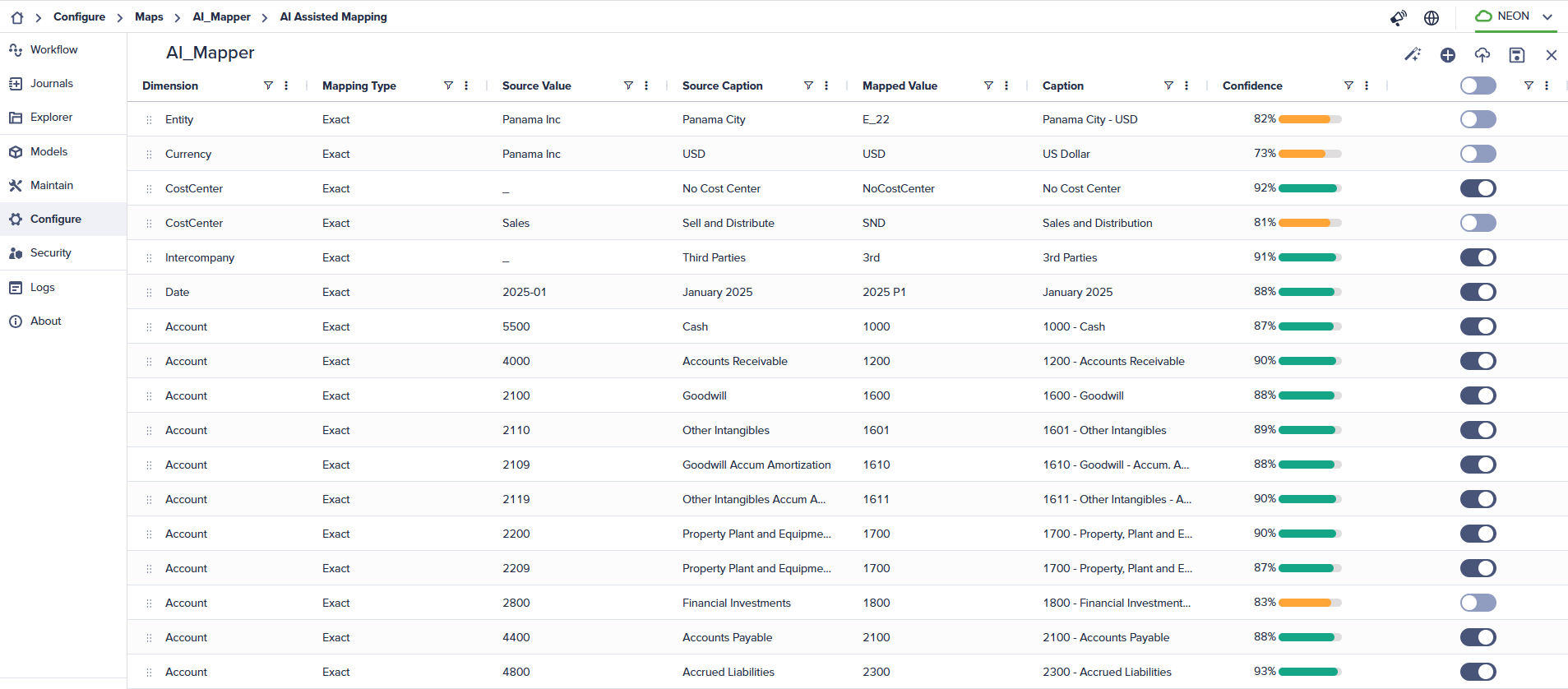
- Select the toggle switch for each line or accept them in bulk. You can manually overwrite a proposed Mapped Value before accepting it.
- Select Save to confirm your mappings and add the accepted combinations to your mapping table.
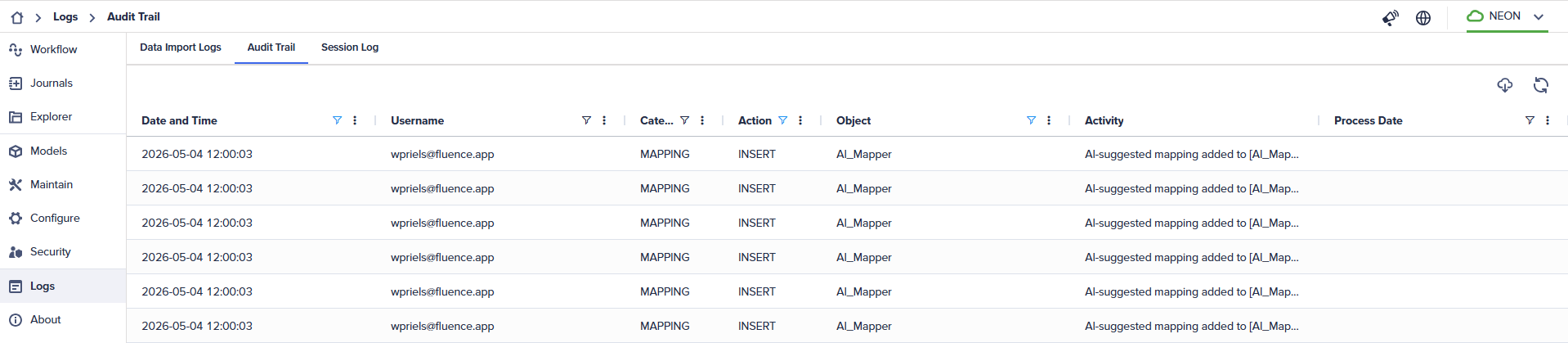
For enhanced traceability, the audit trail exists in Logs > Audit Trail. It records a specific notification for combinations added via AI-assisted mapping.