

Configure manual data imports efficiently and explore the steps required to set up, execute, and manage data imports manually to ensure accurate and seamless data integration.
Manual File Imports - Overview
The data imported into Anaplan Financial Consolidation varies from customer to customer. This is because the data files vary widely depending on the data loaded, the source systems it's coming from, and the information included in the data file.
For example:
- The file produced by the source system may not include the time period. In this case, we need to use the Data Import Definition to define which time period it should be loaded to.
- The source system may provide a file that uses a different name for entities than the name for members in the system. In this case, we need to set up Data Mappings.
Import CSV or Excel file using a workflow task
The diagram shows the overall Data Import Process at a high level:
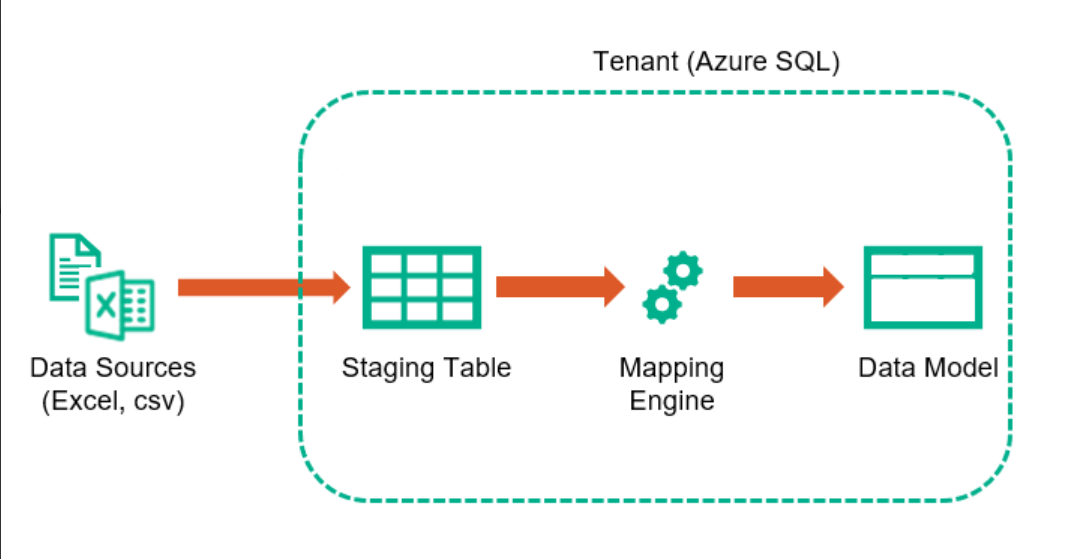
To create a working data import, configure:
There are a few moving parts that need to be configured to create a working Data Import:
- Staging tables to temporarily store the loaded data before mapping and uploading the data to the Fact Tables.
- This task is performed in the Staging Table interface. The default size for strings is 256.
- Data Import Definitions to define the import, that is, a special name; how to handle missing fields like the time period, etc.
- This task is performed in the Data Import Definitions editor, including Field Mappings and Clear Data Settings.
- Data mappings to set up member mappings for each dimension, if needed. For example, how to handle member names that don't match the member names in the system.
- This task is performed in the Maps editor
- Workflows to perform the Imports.
- This task is performed in the Workflow editor.
Additionally, you need to have a sample of the import file to set up the mappings and Data Import correctly.

