You can show, hide, import, and export auto-generated rows.
Once created, auto-generated rows appear in the journal entry detail section.
Show and hide auto-generated rows
On the Details toolbar, you can show or hide auto-generated rows by selecting the Hide/Show Auto-generated Lines icon:

The DisplayJEAutogeneratedLines global variable controls the icon's default behavior. These rows are non-editable, can't be duplicated or copied, and display a locked icon. They update automatically when you save the journal entry.
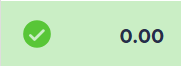
A balance check is available in the upper-right corner of the details panel. It excludes debit and credit balances from any auto-generated rows:
Import and export auto-generated rows
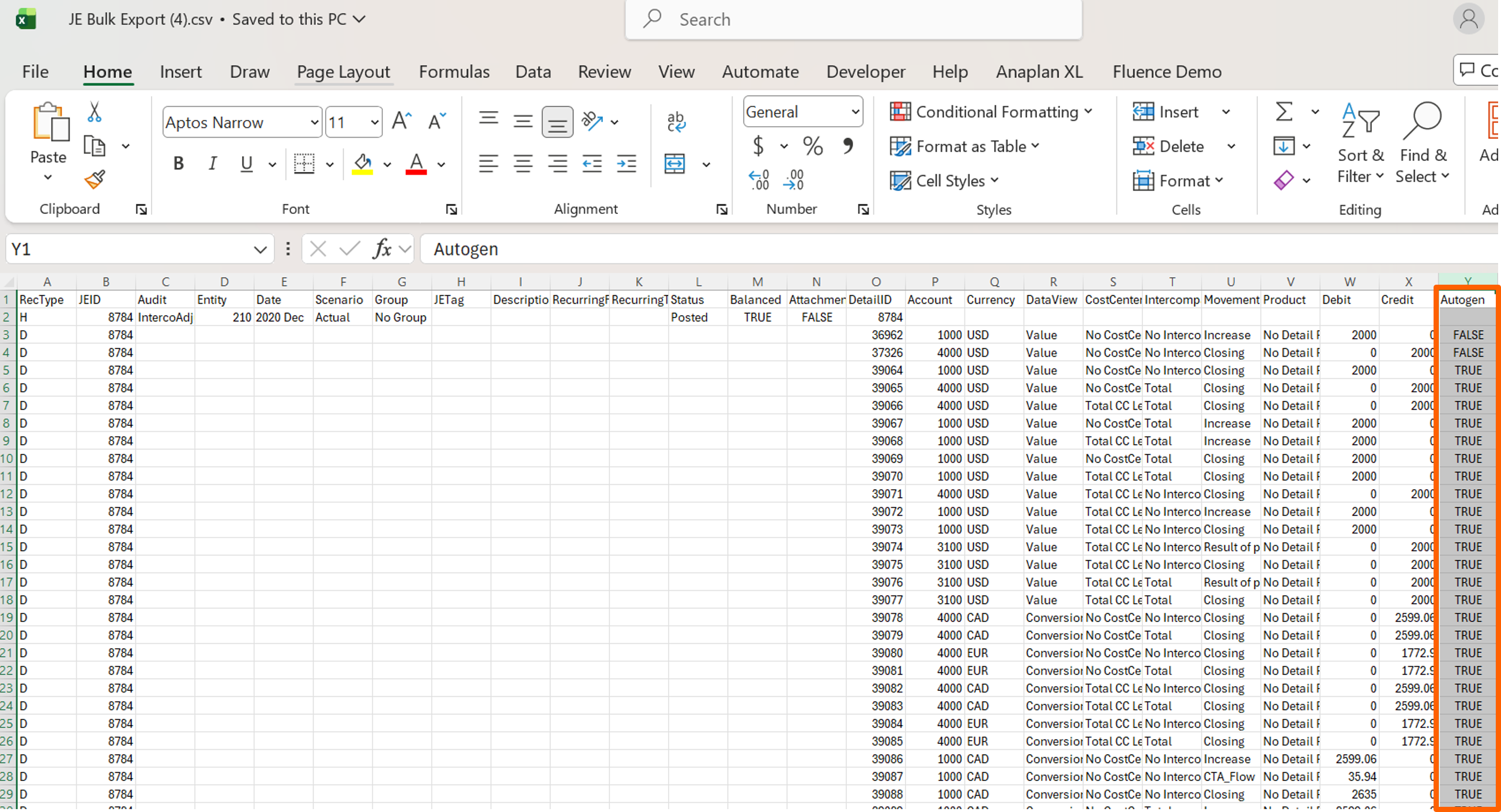
When you import or export data, the Hide/Show AutoGenerated Lines icon setting determines whether the system includes or excludes automatically generated in the export file rows. If you set it to TRUE, you can export auto-generated rows. If you set it to FALSE, the system doesn't export auto-generated rows.
During import, the system ignores any rows flagged as auto-generated in the file and creates new ones based on the manually entered data.
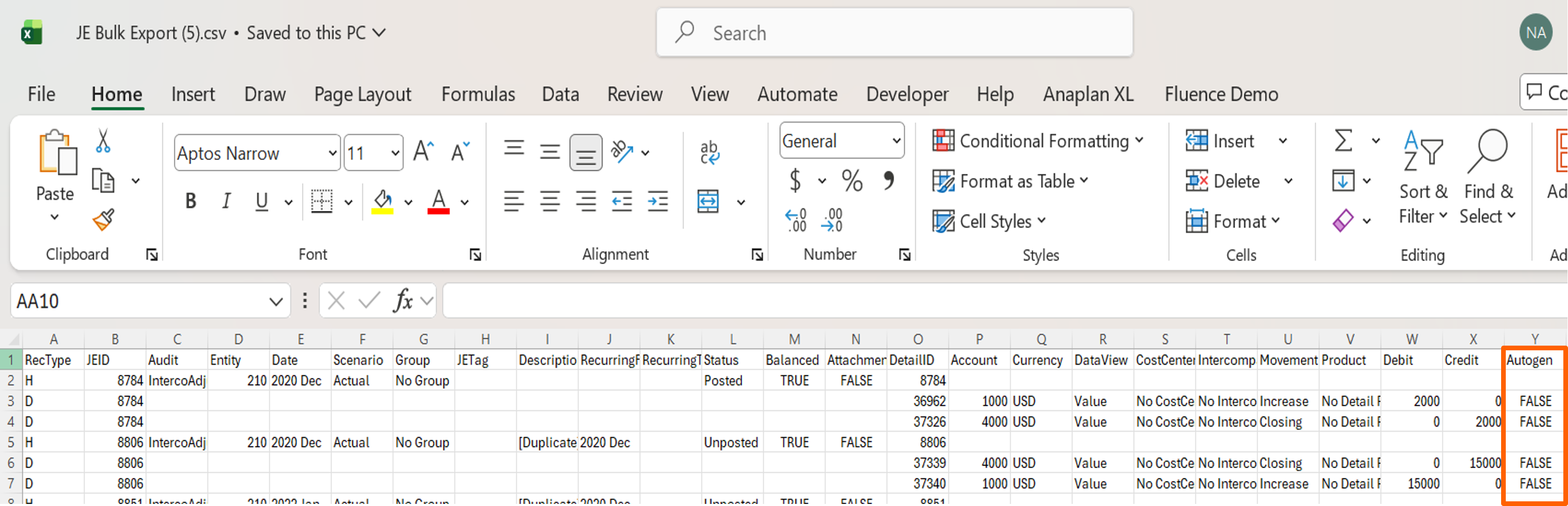
When you set the Hide/Show Autogenerated Lines icon to Hide in the Journals module, the export file only captures the rows where Autogen is set to FALSE or rows you manually create.
When you set the Hide/Show Autogenerated Lines icon to Show in the Journals module, the export file captures both the auto-generated rows where Autogen is set to True and manually created rows where Autogen is set to False.