

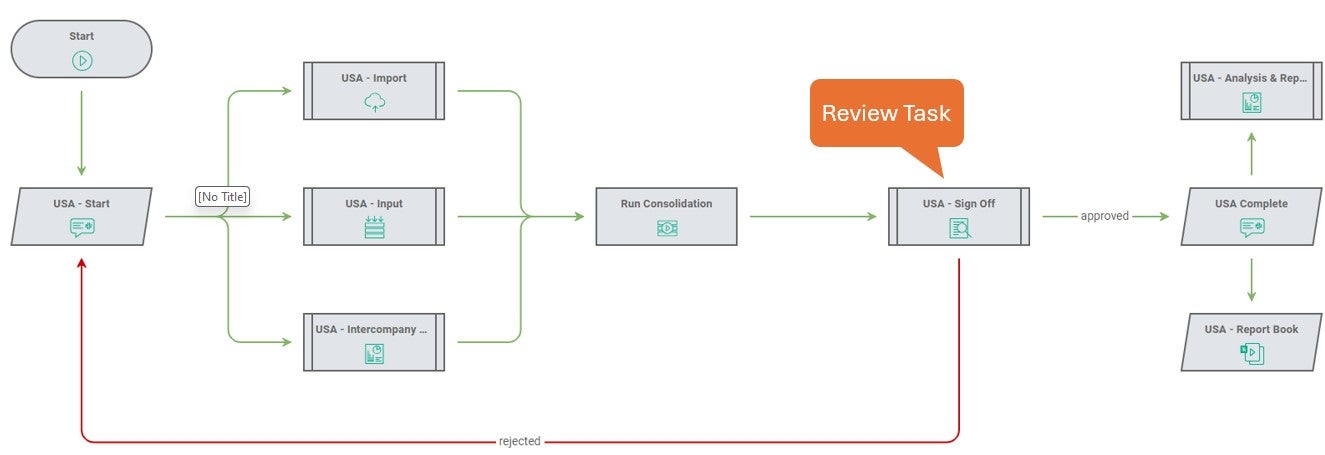
Approve or reject the previous step in the workflow using a Review task. The flow of the workflow can be altered depending on whether the task is approved or rejected.
In this example: The USA – Sign Off Review task is approved, the workflow progresses to the next step. If it is rejected, the workflow path returns to the beginning of the process.
Review task - Configuration pane parameters
The key parameters include:
| Parameter | Description |
| Name | Enter the name that appears on the task. |
| Activity Reports | Select from the list of reports and parameters, or URLs to links that are to be used to review the work if required. |
| Reset on Reject | Resets all tasks between the task that the rejected arrow points to and the current Review task. |
| Owner/Supervisor/Contributor | See Common Workflow Task Fields for more information. |
| Due Date | Enter the date the task needs to be completed by. |
| Advance Rule | Specify how to advance to the task. The default is All predecessors have completed. |
| Info Text | The edit box allows you to add additional information such as instructions that the user may find helpful. |
Configure a Review task
To configure the Review task:
- Drag the Review task onto the Workflow Editor canvas to add it.
Find the Review task in the Action section of the Workflow toolbox. - Select the Review task and select the Edit icon to edit the parameters in the Task Configuration pane.
- Fill in the required parameters.
- The default Name prepopulates to Review n. Modify this name if need be.
- Add Reports or URL links to items that should be reviewed by the Contributor of the task in the Activity Reports section.
- Select + to add a report. Select the report from the Explorer.
- Fill in the required parameters.
If the report doesn't have any parameters associated with it, add an optional description to the item. If the report has parameters associated with it, set the parameter values. Parameters can be:
| Parameter Values | Description |
| Member selection | Select inside the white edit box for the field to set the member to an available member. A prompt to select a member displays. Select a member from the list of members available. |
| Dropdown list selection | If the report has been set up to use a selection from a list of values, there'll be a dropdown list beside the dimension. Select a value from the list of available options. |
| Custom parameter | You can override the member selection and dropdown list to use a custom parameter. Select the widget icon to the right of the member edit box to set a custom parameter. The Pick a Parameter dialog appears.
Enter the custom value in the edit box labeled Custom. |
| Process parameter | You can choose to set up the report to use the members that are selected when the workflow process is started. Select the widget icon to the right of the member edit box to set a process parameter. The Pick a Parameter dialog appears. If Process Parameters have been set up for the workflow, they appear in a list at the top of the dialog. Select an appropriate value. For more information on Process Parameters, read Set up a Workflow to Use Parameters. |
- To add a URL to be reviewed:
- Enter a name in Name.
This label appears in the Review task. Optionally, you can add a description in Description to give the user more context or additional instructions regarding the item to be reviewed. - Enter link in Url.
- Enter a name in Name.
- Add additional reports and URLs as needed.
- Select Reset on Reject to reset all tasks between the task that the rejected arrow points to and the current review task.
- Set the Owner, Supervisors and Contributors, as well as the Due Date if applicable. You can also set the Advance Rule. For more information, read Work with Interactive Workflow Tasks.
- Select OK to apply changes in the Task Configuration pane.
- Select Save to save the workflow.
- Select Play in the Workflow Editor toolbar to start the workflow.
- Select Run.
- The parameters you select when the workflow starts are passed to the report parameters that were set to a Process Parameter.
Note: To read more about how to leverage Process Options.

