

Notify a user regarding an offline manual task to be performed using the To Do Workflow task. These tasks have free form instructions and are completed like any other interactive task. This type of task is useful if there's an item to complete outside the FCR application.
For example, if the user needs to verify information in another application, instructions or a URL link can be created to navigate the user to the third-party application. You can also use this task to link to internal URLs. For example, if the user needs to create or review journals, a link can be created to take them to the Journals module.
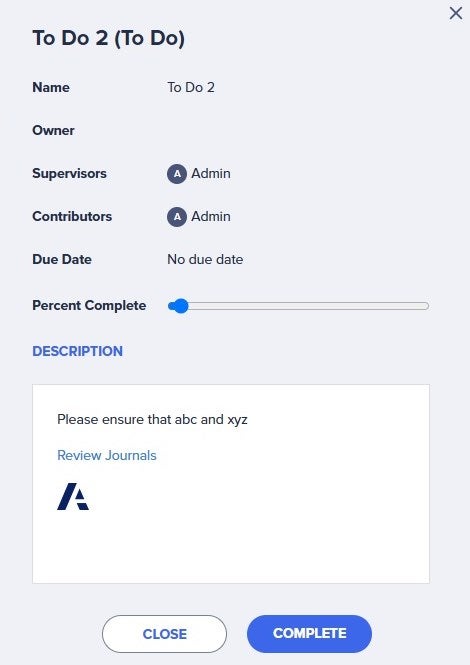
To Do task - Configuration pane parameters
The key parameters include:
| Parameter | Description |
| Name | Enter the name that appears on the task. |
| Description | Enter the description of the task(s) to be completed. This can include:
|
| Owner/Supervisor/Contributor | See Common Workflow Task Fields for more information. |
| Due Date | Enter the date the task needs to be completed by. |
| Advance Rule | Specify how to advance to the task. The default is All predecessors have completed. |
| Info Text | The edit box allows you to add additional information such as instructions that the user may find helpful. |
Configure a To Do task
To configure the To Do task:
- Drag the To Do task onto the Workflow Editor canvas to add it.
Find the To Do task in the Action section of the Workflow toolbox. - Select the To Do task and select the Edit icon to edit the parameters in the Task Configuration pane.
- Fill in the required parameters.
- The default Name prepopulates to To Do n. Modify this name if need be.
- Enter the details of the task or tasks to be completed in Description. Using the editor, include:
- Freeform text, basic formatting options are available in the editor.
- Interactive URL links.
- Images or diagrams to help illustrate the task to complete.
- Set the Owner, Supervisors and Contributors, as well as the Due Date if applicable. You can also set the Advance Rule. For more information, read Work with Interactive Workflow Tasks.
- Select OK to apply changes in the Task Configuration pane.
- Select Save to save the workflow.
- Select Play in the Workflow Editor toolbar to start the workflow.
- Select Run.
- The parameters you select when the workflow starts are passed to the report parameters that were set to a Process Parameter.
Note: To read more about how to leverage Process Options.

