

Access and modify reports using intuitive tools and features designed to streamline the reporting process.
To access and modify a report:
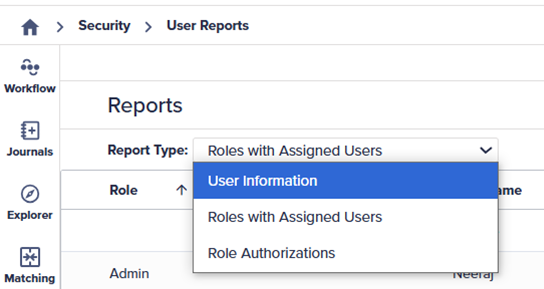
- Select the Reporting icon and select the User Information report from the Report Type dropdown if it isn't displayed.
- Select the column name and then select the Sort icon on any column, such as Last Name to sort the report by that column alphabetically.
- Select the Hamburger icon to filter the report by a specific role.
- Select Select All to deselect all items and then select Controller and Preparer.
Select the white space in the report to close the filter window. - Select and hold the left mouse button on Role.
- Move the Role column after the Last Name column.
You can move any column in the report. - Select the edge of the Status column to resize the column.
- Select the Refresh icon on the toolbar to see the latest information on the report.
This is useful if multiple power users or administrators can make security changes. There may be changes made since you opened the report. - Select the Export icon from the toolbar to export the report into an Excel report file.
The results appear below.
NOTE:
- The report exports with the filters and sorting applied.
- Sorting may be available depending on the report. For example, you can't sort columns for the Role Authorization report.

