

Create a workflow process for several business units quickly and easily by defining the workflow once and selecting the members, such as business units, to be burst (or cascaded) through. This ensures that all business units follow the same process. Homepage panels can then be configured to show the status of each workflow task by business unit.
Enable Workflow bursting
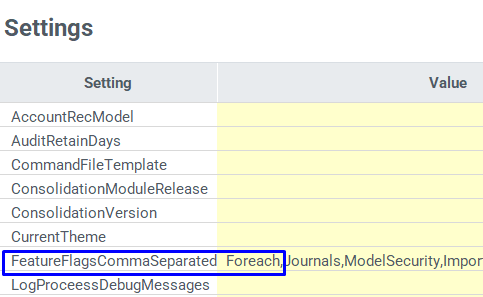
To enable Workflow bursting, add the Foreach to the FeatureFlagsCommaSeparated to the Settings Form in the Global > Administration folder in the Explorer module.
Create a Workflow bursting process
Workflow bursting processes are created using the Foreach workflow task in the WF Controls section.
To create a Workflow bursting process:
- Specify a name, dimension to burst across, and hierarchy to use in the task panel by editing the Foreach task.
- Select the Edit Query link and specify the members to use in the task.
The Dimension Query Specification dialog is displayed, where the members to use in the Foreach task are specified. - Drag and drop the members to use from the hierarchy on the left side to the selected members area on the right side.
- Create a workflow process within that task once the Foreach task is created.
- The workflow process is created, and defined once but will be run for each member selected in the Dimension Query Specification dialog.
- The workflow process is run for each specified member, and a task is created for each member.
- Add Burst to the name, once the task is created for tasks assigned to a supervisor and contributor.
The {Burst} is replaced by the member name in the Workflow module or from the homepage. - Select the Process Logs tab to view messages for each activity in the workflow process that was started.
Use a Workflow Bursting process
When using workflow bursting processes, you can view a workflow task from the Workflow module for several members, such as business units, that are created from one defined workflow process.
For example, in a sample workflow process, the Update Mappings task is created for each entity that was defined when creating the workflow process.
The entity name appears in brackets next to the task name. Once the Update Mappings task is completed for an entity, the File Import task for that specific entity will move to In Progress.
Note: You will only see the tasks for the members that you or your role has been assigned to.
View status of bursted workflows in the Workflow Editor
With the required workflow authorization, when you view the workflow bursting process, select a dropdown list to view the status of each task for a specific member.
View status of bursted workflows on the Homepage
Configure homepage panels to show the status of each task by each business unit. You can view the status of each task by business unit from your homepage if the page has been configured for the roles you have access to.

