Learn about new Anaplan features and enhancements introduced in January 2026.
Anaplan Data Orchestrator
Data Orchestrator Dataspaces
We've introduced Dataspaces. These are areas within Anaplan Data Orchestrator where you can organize your data and objects into separate partitions. Each dataspace is access-controlled to provide privacy to your data.
Dataspaces is enabled for all production tenants:
- Current Data Orchestrator objects will appear in one or more default Dataspaces, one per region in which Data Orchestrator is provisioned for that tenant. For most users, this is a single region, resulting in a single Default Dataspace.
- When you access Data Orchestrator, you are presented with a list of Dataspaces to which you have been granted access. You need to select one of those Dataspaces or choose to create a new Dataspace. You'll work only in that Dataspace until another is selected, or you leave Data Orchestrator.
- All Data Orchestrator Objects are contained in a Dataspace and can only be accessed when that Dataspace is selected.
- You can update the name and description for Dataspaces, and you can only delete them when they contain no objects.
- When referencing Data Orchestrator objects outside Data Orchestrator, for example in Workflow, the Page Builder, or Financial Consolidation, you must first select a Dataspace before selecting a Data Orchestrator object.
- All current users with the Integration Administration role will be granted access to all Dataspaces in their tenant.
- An Integration Administrator can create a new Dataspace and will automatically have access to that Dataspace.
- The Tenant Administrator manages access to Dataspaces for users with the Integration Administrator role. They can add and remove access for all Dataspaces, including those created by an Integration Administrator and the Default Dataspace. This is done through the Administration Console.
Learn more in Anapedia documentation for Data Orchestrator Dataspaces.
User Experience
Hierarchy chart pagination
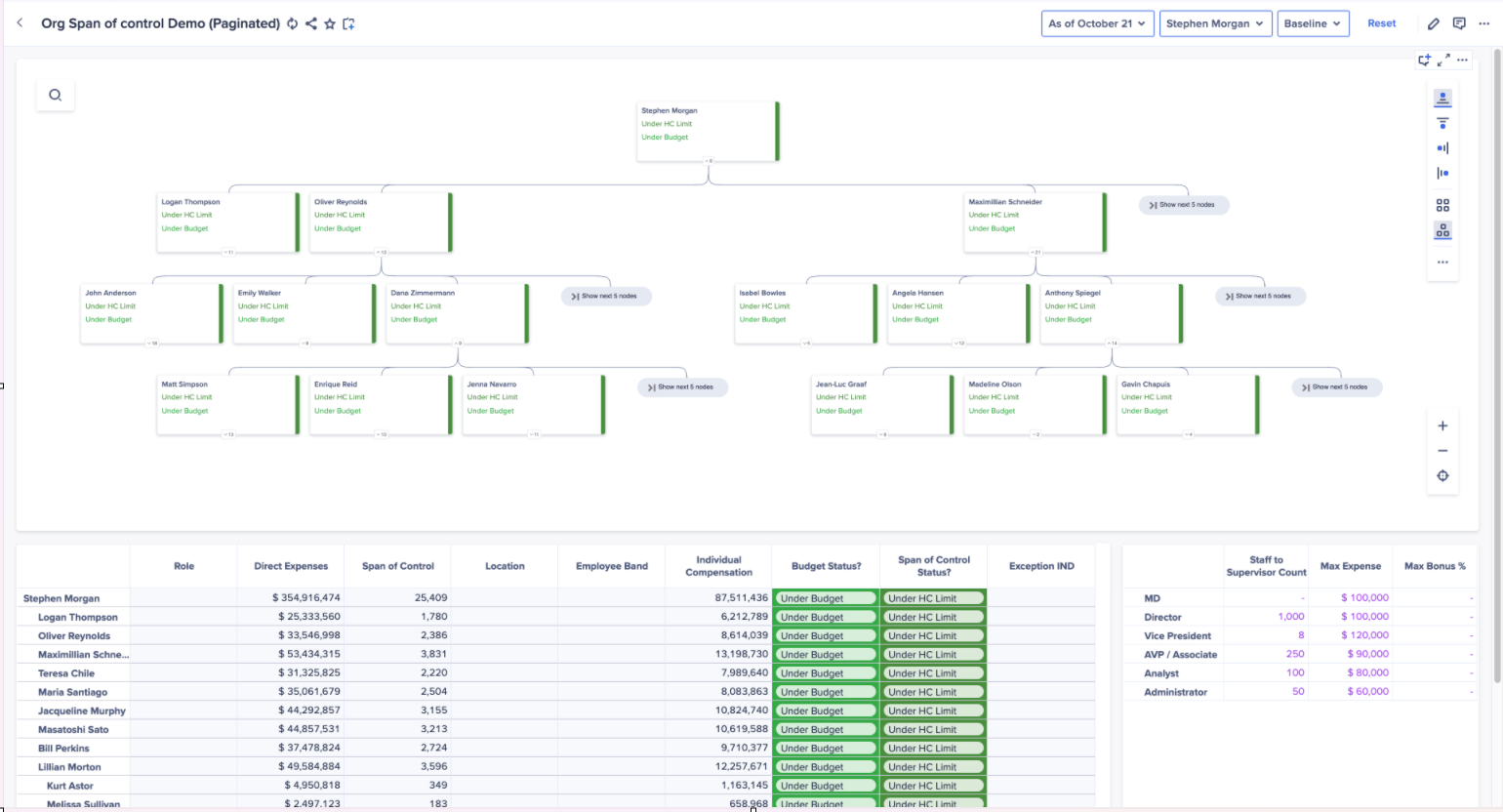
We've introduced pagination in Hierarchy charts. This allows you to control how many nodes appear at each level of the hierarchy chart.
Page builders can use the Allow Pagination toggle to turn pagination on or off. When pagination is off, the chart will attempt to display all nodes at each level without pagination, which is ideal for smaller hierarchies.
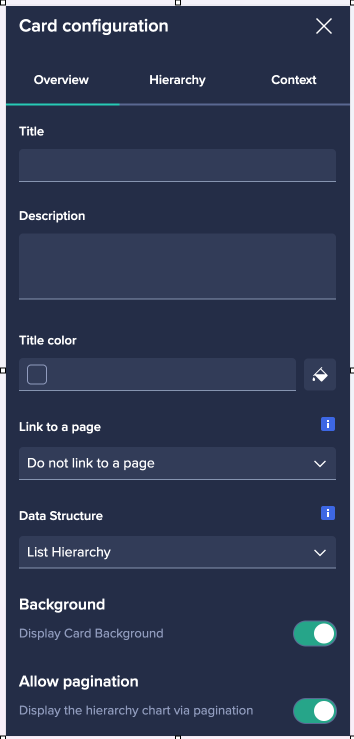
When pagination is turned on:
- Any level with more than three nodes is paginated, showing only three nodes by default.
- You can select Show next 5 nodes in the chart. This loads and displays five additional nodes at that level, and can be used repeatedly to reveal more nodes.
Learn more in Anapedia documentation:
Optimizer
General enhancements
We've made enhancements to Optimizer:
- Display size for objective, variables, and constraints line items: We've increased the size of the model window and dropdowns, and enabled window resizing.
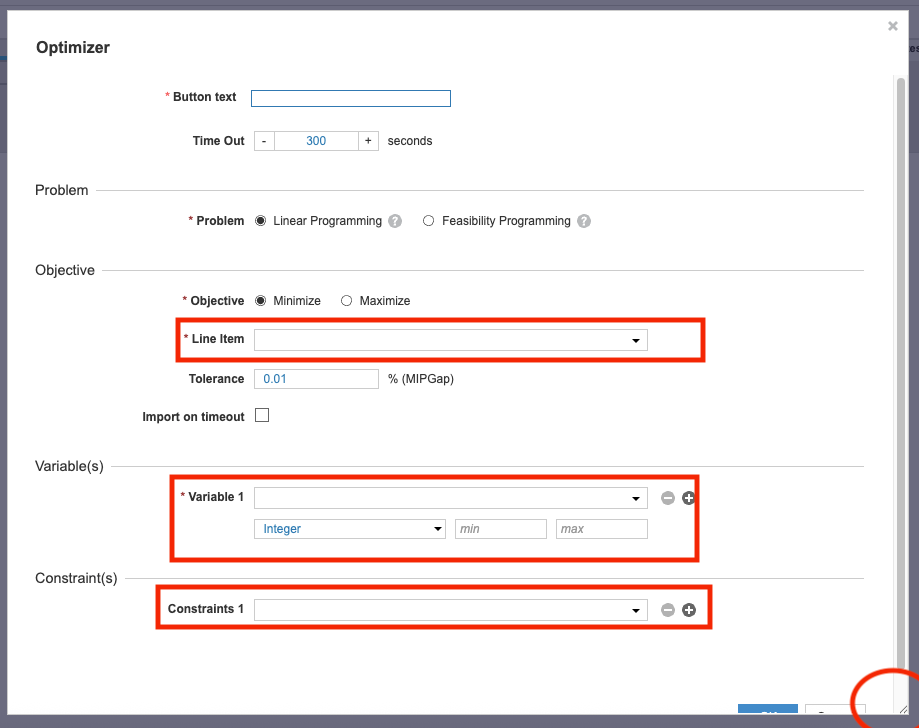
- Search capabilities: We've improved search capabilities to enable you to show only line items that contain the search term in the search results.
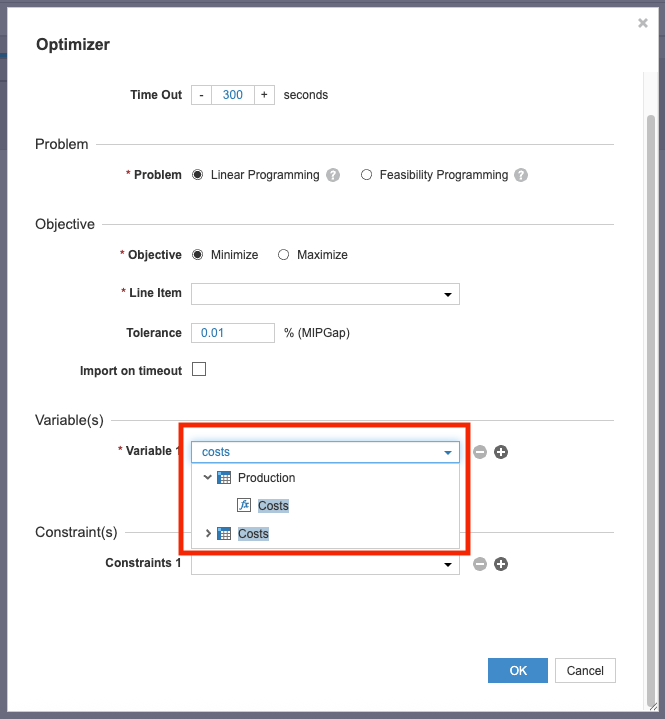
- Updated Gurobi version to 13: We expect this version to significantly improve performance (on average, ~16% faster solves on difficult mixed-integer programming (MIP) models. https://www.gurobi.com/whats-new-gurobi-13-0/ ).
Forecaster
Forecaster results and explainability repointing
You can now write forecast results to a different Anaplan model or workspace than the one configured in the forecast model. This lets you to test forecasts in non-production environments before deploying to production, without having to rebuild your configurations.
Anaplan XL (version 2601)
General enhancements
Native Excel formulas in grids
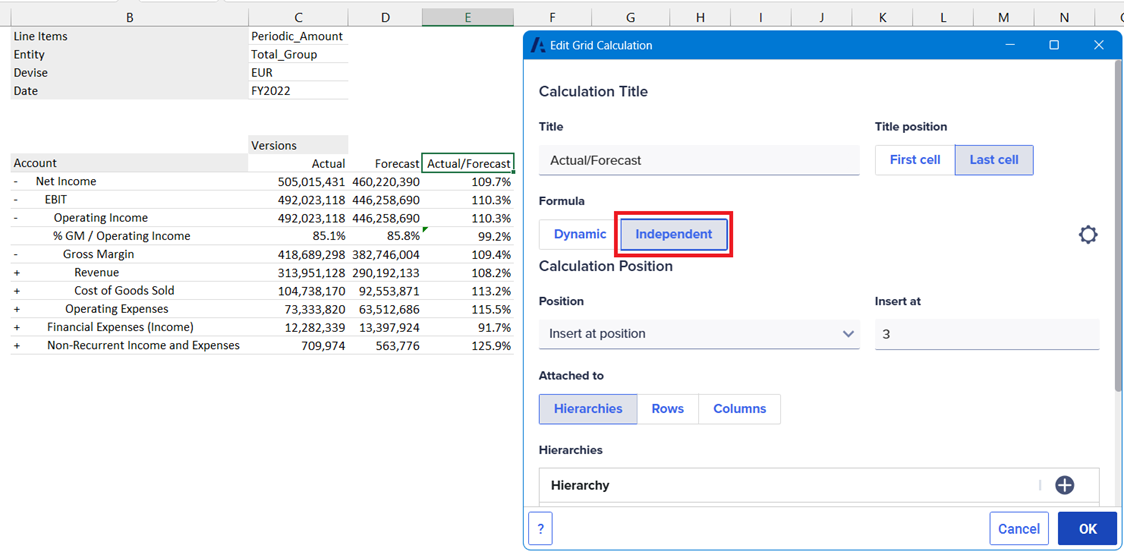
When a grid calculation is added, the same formula is applied to the entire column or row. This formula is automatically copied or deleted if the number of rows or columns changes.
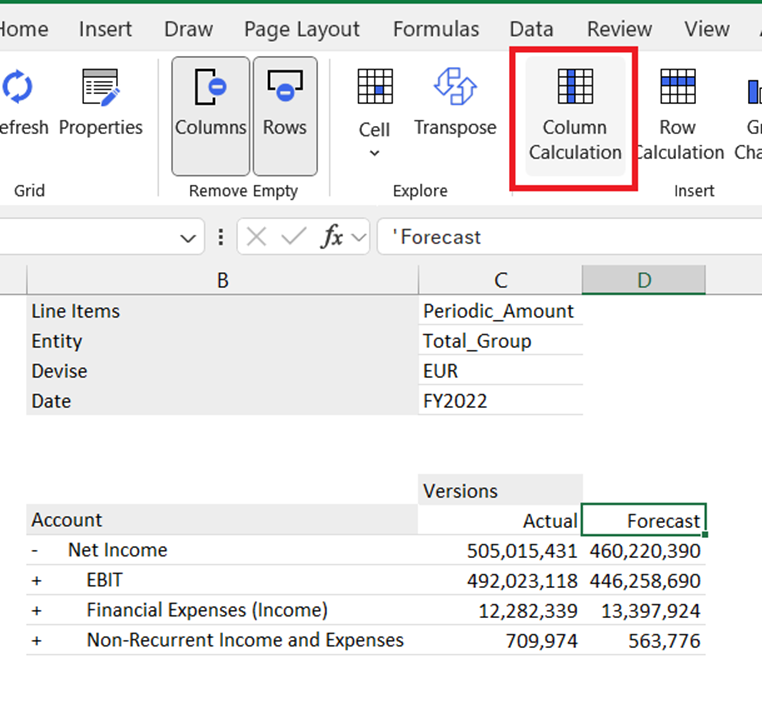
You can change this default behavior to enable independent Excel formulas to be entered into each cell. Only use this type of grid calculation when the number of rows and columns in the grid is static.
Deferred refresh for workbook slicers
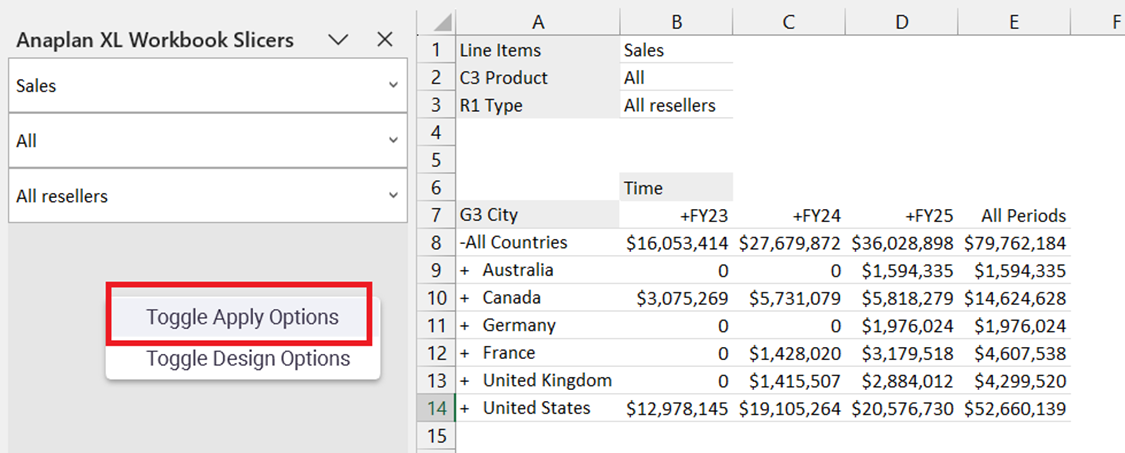
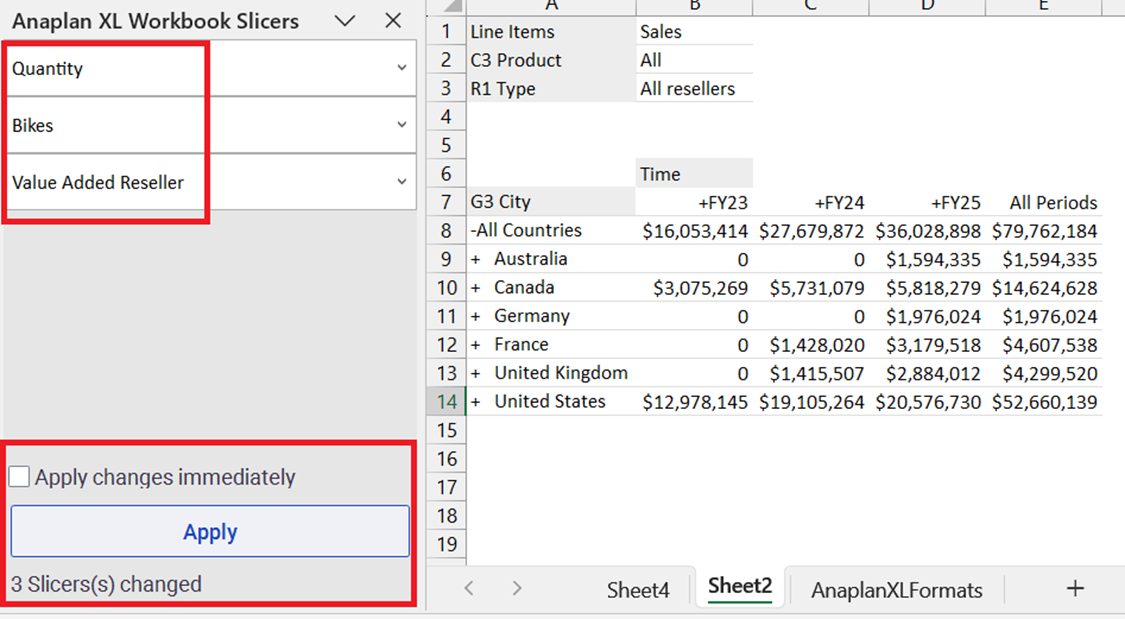
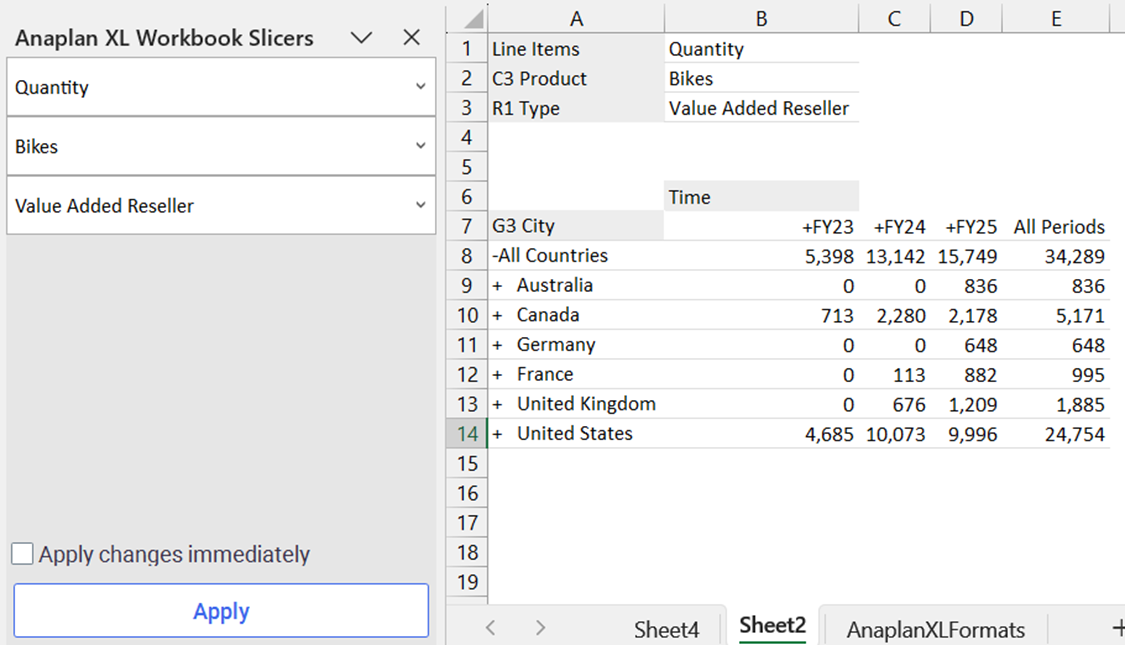
Toggle Apply Options is now available in the Workbook Slicer pane via the right-click menu. This lets you activate the deferred refresh option, and to change the selected values in multiple slicers. Refresh is only triggered when you select the Apply button.
Granular control of available connectors
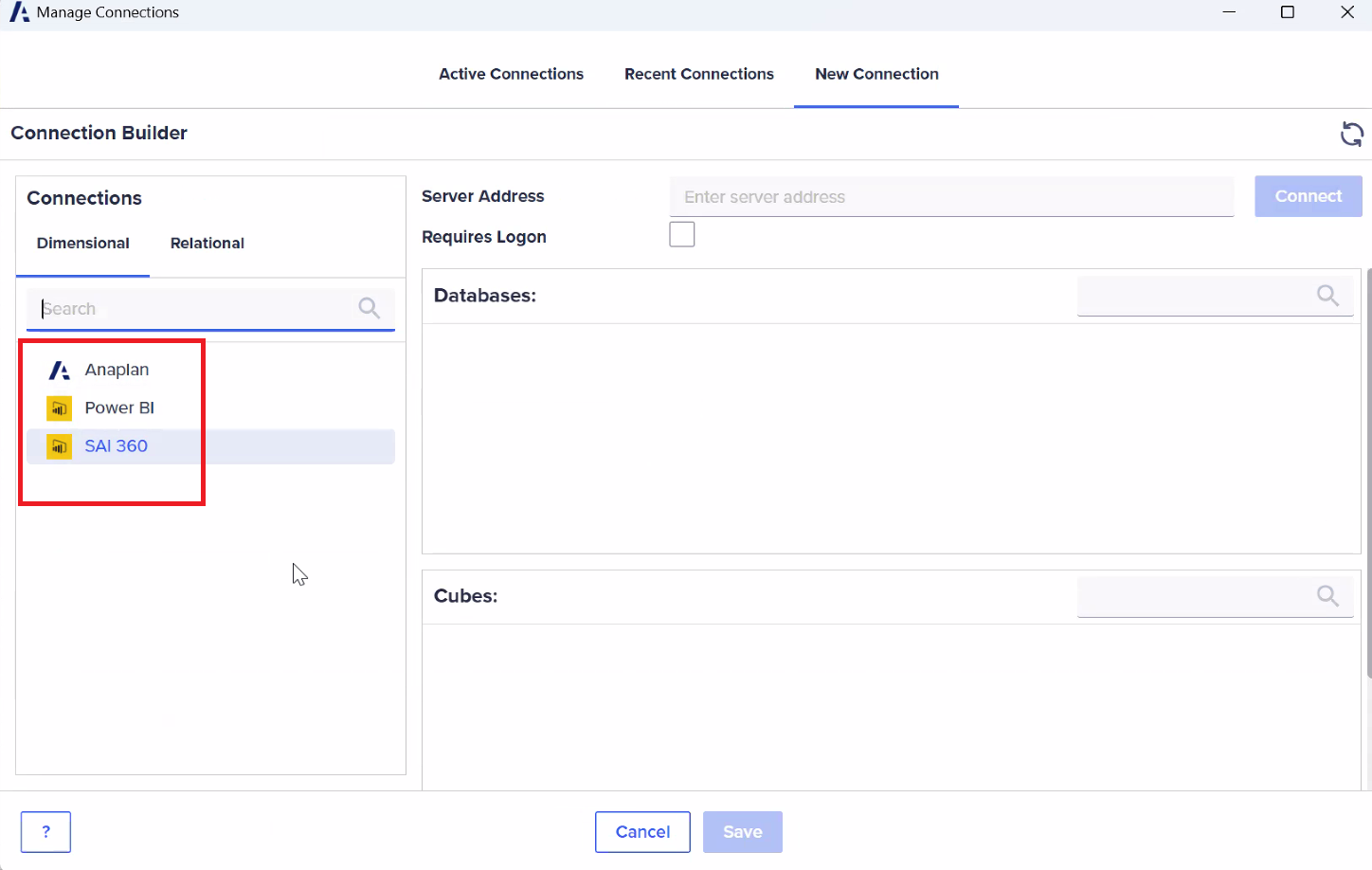
You can restrict the list of available connectors in the connection screen of Anaplan XL. This control can be customer-specific. In this example, the available connectors are limited to Anaplan and Power BI.