
Learn about new Anaplan features and enhancements introduced in July 2026.
User Experience
Board layout enhancements
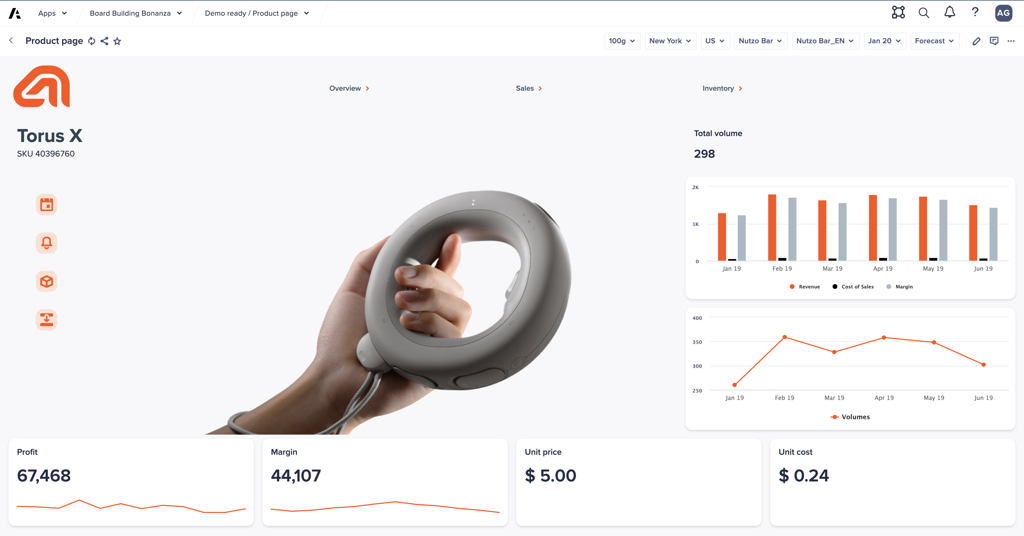
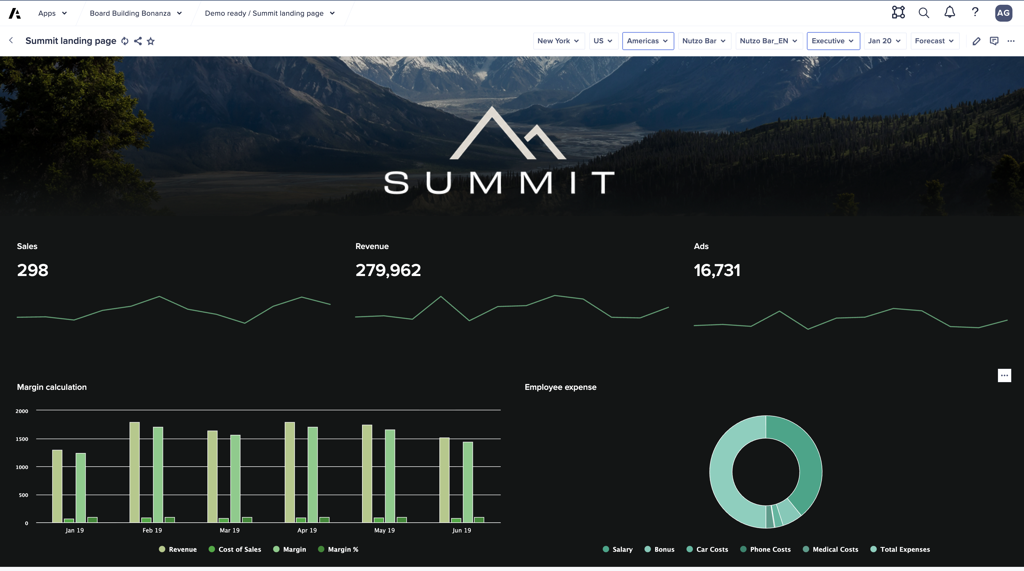
We've enhanced the layout capabilities on Board pages, significantly elevating the user experience and enabling the creation of visually compelling landing pages and dashboards. This includes:
- Support for up to twelve cards on a row.
- Enabling space between cards to improve the visual look and feel.
- Support for a background image to add a banner to the page.
- Duplicate Card option to accelerate page building.
- Removing the background for Grid, Chart and Map cards for a seamless look and feel.
- Visual styling improvements.
No existing boards will change, but they can be updated with these new features in Page Designer.
Learn more in:
- Board layout updates overview video
- Configure row layout on Anapedia
- UX page board design features training lesson
CoModeler
Edit existing import data sources through conversation
You can now edit existing import data sources through conversation. You can rename a data source, update file options such as delimiters, encoding, decimal separators, or adjust header and data row positions all through natural language, removing the need to navigate the Import Configuration user interface.
Example prompt:
Rename Geo_List_CoModeler.csv to 'Geography Import'.

For our Decimal, we use Commas(,) and the First Data Row should be Row 3
Create list import actions from file type data sources
You can now set up list imports directly within your model through conversation. You can ask CoModeler to create an import action targeting any existing list. CoModeler will automatically suggest mappings between source columns and target list properties, including Name, Code, Parent, and any custom list properties. CoModeler also supports selecting how list items are uniquely identified. This includes Name only, Code only, Name or Code, or a combination of properties. For the best results, include the column headers from your source file in your prompt. This helps CoModeler make the most accurate mappings possible. Note that the file source must already exist in the model, and only file source types are currently supported.
Example prompt:
Using the Geo_List_CoModeler.csv file available in the import data sources, create 3 standard lists in a Geography hierarchy.

Region is the parent of Country. Country is the parent of City. The top level for Region is All Regions. Use a list naming convention that includes a prefix of G1 where the number is the level of the list. Add codes for all list members.The column headers in the file are: City Code, City, Country Code, Country, Region Code, Region.
Create saved views in your model
You can now capture and preserve specific perspectives on your modules through conversation. You can ask CoModeler to create a saved view for any module, including views that pivot dimensions, filter data, show or hide columns or rows, or adjust column widths.
Example prompt:
Using the 'Takings by month and genre' module, create a saved view called 'P&L Summary by Genre'.

Place Genre on rows and Time on columns. Show only the following line items: Budget, Total Cost, Total Revenue, Profit. Hide the following line items: Cost, Licensing, Box office takings, DVD sales. Apply a row filter where Profit is not blank. Place row totals at the bottom and column totals at the right.
Learn more in Anaplan CoModeler.
Workflow
Usage breakdown
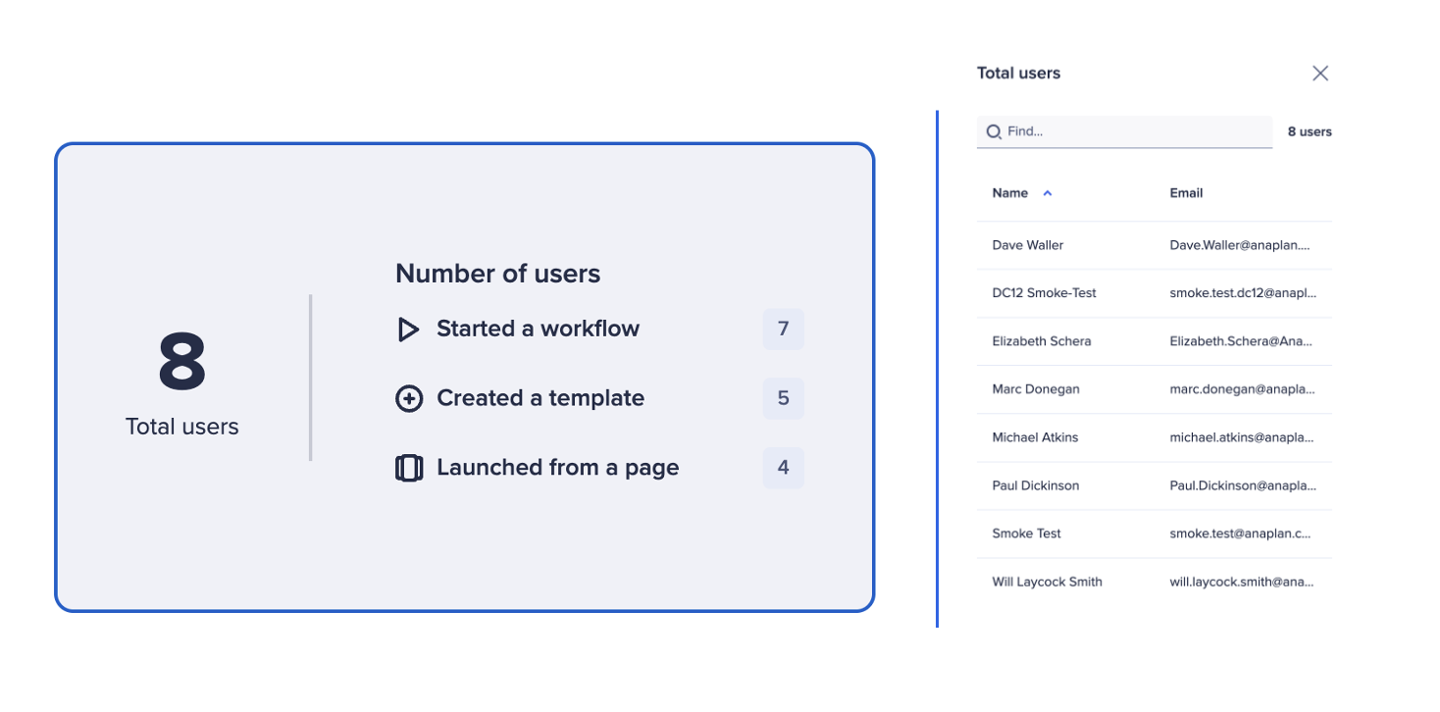
We've improved the Usage dashboard to give you a clear view of who's using Workflow. Workflow owners can now select the Total users metric on the dashboard to see a detailed list of users. The new side panel displays the names and email addresses of everyone who has engaged with Workflow within the selected time period.
Learn more in Monitor workflows.
Anaplan Data Orchestrator
Validations in Pipelines
Row based validation nodes can now be added into pipelines to identify and remove unwanted or dirty data. Checks can be made for missing values (NULL), data type enforcement, threshold and range checks, and length and pattern matching. In addition to sending notifications, pipelines can be configured to remove the offending rows and continue or stop. An additional configuration allows a pipeline to be stopped if too high a proportion of the data fails validation. Rows that fail can be downloaded for review.
Anaplan model objects as a pipeline sink
Anaplan model objects can now be selected as pipeline sinks, supporting:
- Modules
- Lists (flat and parent child)
- Composite list based hierarchies
This is based on the latest version of core integration and allows matching on code or name, as well as being actionless. Models in both standard and deployed mode are supported and the same model object can be targeted by multiple links.
S3 as a pipeline source and pipeline sink
Existing AWS S3 connections can be configured as a source in a pipeline as well as a sink. This allows read from files in S3 and writeback to files in S3.
Remove duplicates transform node in pipelines
A remove duplicates transform node can be added to a pipeline. The columns which make up the unique combinations must be selected, and the first or last duplicate should be retained.
Column automapping
When mapping to model as a sink in pipelines, automapping is now available. This reduces the time needed to configure mappings that have many line items, list properties, or hierarchy levels.
Anaplan dataset as a pipeline Sink
You can now select Anaplan dataset as a pipeline sink, supporting multiple use cases:
- A complex chain of transformation views can be split into smaller steps, with data materialized at each step. This can significantly improve performance at high volumes.
- Pipelines can be used to update the data in source datasets to handle data restructuring or a year end process.
- Data output from Data Orchestrator can be compared to what was output previously with only the changed rows included, providing a manually configured approach to delta processing.
New Dataset creation
When configuring an Anaplan dataset as a sink, you can choose to populate an existing dataset or create a new dataset as the target.
Virtual datasets
Dataspaces in Anaplan Data Orchestrator enables enterprises to organize data in Data Orchestrator into clear, governed boundaries. Virtual datasets enable common data to be shared across those Dataspaces. Both the source dataset and those derived through transformation views can be shared from their home dataspace to neighboring Dataspaces in the same region.
Select core integration version at a link level
Previously, the core integration version used for a link was defined at tenant level. For tenants on V1, it's now possible to override the core integration version to use V2.
Dataset exports
To improve performance, dataset export splits the output into multiple separate files each of around 500 MB in size. Previously, dataset exports only allowed the download of the first of these files. This enhancement allows you to select which of the file parts you want to download. After export is complete, a list of the list of files available for download is displayed for the user to select from.
Anaplan XL (version 2607.1)
General enhancements
- XL3 lookups now run async for better performance with the new asynchronous 'XL3LookupAsync' formula.
- We've updated the View Picker in the grid designer and task pane for Anaplan connections.
- We show a warning message when the add-in is used over the recommended guardrail limits to provide information to users about performance and adoption best practices.
- Slicer lists are now copied when copying a sheet.
- Grid/chart permissions are now reflected in the report designer user interface.
- Anaplan token refresh can now be set to optional.

