

In a conversation with Anaplan CoModeler you can attach text-based CSV files. These specification files help explain what you want CoModeler to do. Structured inputs enable you to provide detail in a consistent and reusable way.
Use to attach CSV file inputs to your CoModeler conversation, and then refer to them in your prompts. Typical scenarios include providing specifications for new models, and managing and populating lists.
CSV specification file — New model example
This example shows a specification file for a new model. The example prompt tells CoModeler about it, and what you want to achieve.
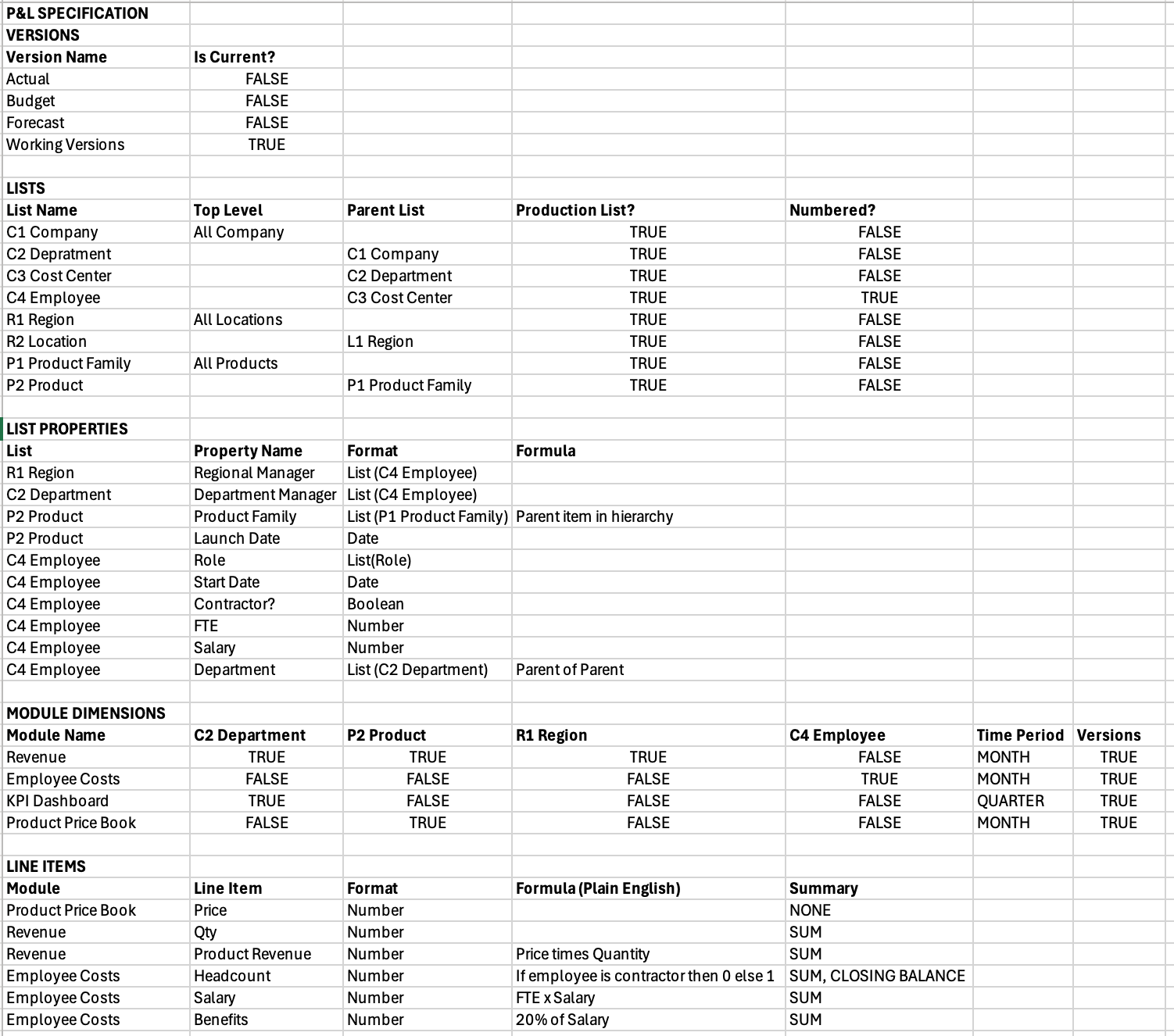
This is an example prompt that references this specification:
Build a P&L model from the attached CSV specification.

File Structure:

- VERSIONS - Versions to add.

- LISTS - Lists to add.

- LIST PROPERTIES - Add properties to a new List Properties module for each List. Do this instead of adding the properties into the List properties directly.

- MODULE DIMENSIONS - TRUE/FALSE matrix of Applies To for the module.

- LINE ITEMS - Line items with their modules and formulas to be created.

Instructions:

1. Add all versions if they don't already exist.

2. Create ALL lists with parent-child relationships.

3. Create a new List Properties module called "<List Name> Properties" for each List.

4. Add properties as new line items to the respective List Properties modules.

5. Build modules using TRUE dimensions only.
Note: This example uses a single prompt. You could achieve the same result with a succession of prompts. However, if you do this, you will have to supply the specification file again to maintain context. See Get started with Anaplan CoModeler for more information on conversation context.
CSV specification file — List example
Specification files are ideal for creating model objects like lists. Here's an example employee list, and prompts for creating list items and properties.

| Objective | Prompt |
| Create list items. | For each employee in the employees.csv file, add a new list item to the Employees list. Use "Employee ID" as code, and "Name" as name. |
| Create list properties. | Using employees.csv, add each field from "Position" onwards as new line items in a new module called "SYS Employee Properties" with the Employees list in Applies To. Use percentage number format with 1 decimal place for percentage fields, and default number format for all other numeric fields. For all other line items, choose the format closest to the data type in the csv. |

