

A Calculation task executes a stored procedure on the database server. For example, use this task to run the stored procedure that runs the conversion (foreign exchange) calculations.
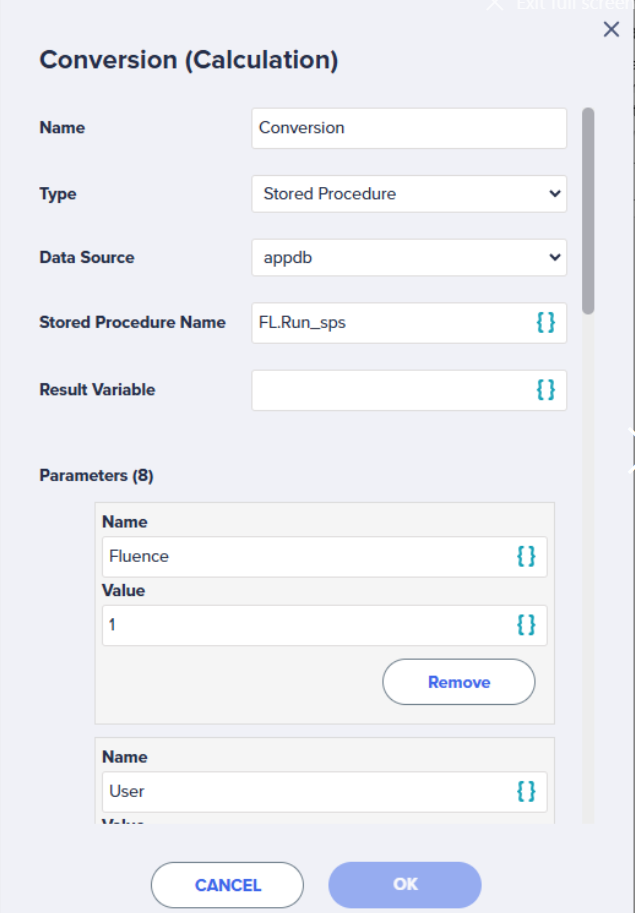
Note: The Consolidation application provides several out-of-box workflows which run various consolidation Calculations in the global folder Anaplan\Consolidation\Processes. The best way to use these calculations is to use a Run workflow task. You shouldn't create your own Calculation task that calls the stored procedure.
Configuration pane parameters
The key parameters include:
| Parameter | Description |
| Name | Enter the name that appears on the task. |
| Type | Select the type of script to be run:
|
| Data Source | Select the schema where the stored procedure is located. Select one of:
|
| Stored Procedure Name | Name of the stored procedure to run. |
| Result Variable | If the stored procedure returns a result, use this parameter to specify a result variable to save it to. You can refer to this variable using the {} process syntax in future tasks. For example,
The return value is always converted to a string. |
| Parameters | If the stored procedure requires any parameters, they are defined in the Parameters section. |
| Timeout | Enter the time that the system will wait for the activity to complete. Set this parameter to let the workflow to progress if the calculation is taking longer then expected. A calculation taking longer than expected shows that there's an error in the calculation. If a timeout isn't set, the workflow would be blocked indefinitely if the stored procedure encountered an error and never returned back to the calling workflow. |
| Advance Rule | Specify how to advance to the task. The default is All predecessors have completed. |
Configure a Calculation task
To configure the Calculation task:
- Drag the Calculation task onto the Workflow Editor canvas to add it.
Find the Calculation task in the Application section of the Workflow toolbox. - Select the Calculation task and select the Edit icon to edit the parameters in the Task Configuration pane.
- Fill in the required parameters. If the Type is Stored Procedure:
- Enter the name and parameters of an SQL stored procedure.
- If the stored procedure returns a result, use this parameter to specify a result variable to save it to.
- Select the Data Source indicates the schema to run the SQL statement against.
- If the Stored Procedure has parameters, select New Parameter to add them as required. For every parameter, there's a Name and Value pair.
- Name: It's the name of the parameter for the stored procedure.
- Value: It's the value of the parameter. You can either hard-code the value, use the value passed in from the Process Options in the Start task, or use Global Variables.
| Types of parameter values | Example |
| Hard-coded | Name = Entity Value = Europe |
| Process Options | Name = Date Value = |
| Global Variables | Name = Model Value = |
- Select OK to apply changes in the Task Configuration pane.
- Select Save to save the workflow.
- Select Play in the Workflow Editor toolbar to start the workflow.
The workflow process starts.

