

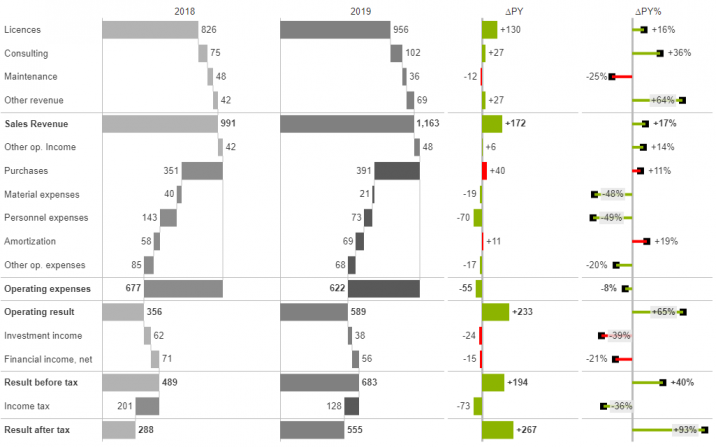
This tutorial will explain the steps to create the charts shown below.
This is an example based on the vertical waterfall IBCS template .
Data
This tutorial will use simple Excel data on which a Pivot View has been created.
- To view the Pivot View definition, select the Anaplan XL ribbon.
- Choose Connections > Connections.
- Select the ellipses next to the Pivot View row and Edit.
Add business rules
After downloading the file, add business rules to set which accounts are expenses or totals and the current year.
- Select the Anaplan XL menu > Business Chart > Add Business Rules.
- Select Expense for the Rule.
- Expand the Account dimension and select the Account hierarchy from the Hierarchy dropdown.
- Expand All from the Members pane.
- Double-click to add Purchases, Material expenses, Personnel expenses, Amortization, Other op. expenses, Operating expenses, and Income tax.
- Select Add.
- Navigate to the XLCubedBusinessRules tab.
- Scroll down the sheet and type '2019 in cell E64 to ensure it's text rather than a number.

