

Synchronize hierarchies using the Hierarchy Manager. It checks a new Hierarchy Synchronization file against the current contents of a hierarchy. It then inserts, updates, and renames the necessary parts of the Anaplan hierarchy structure to match the file with the Anaplan hierarchy structure.
Hierarchy Update v Hierarchy Synchronization
Hierarchy Update is different from Hierarchy Synchronization.
- Hierarchy Update: It only changes member properties and parent assignments for members that already exist in the system.
- Hierarchy Synchronization: It Adds, updates, and rename members. When synchronizing, if there are members that don't exist in the incoming file but are in the Anaplan Hierarchy, you can re-parent those members under a To Be Deleted parent. You can clean up the parent later.
Create a Hierarchy Synchronization file
Create a Hierarchy Sync file using the correct format before performing the synchronization. The format depends on the dimension that you want to synchronize, as the properties for each dimension vary. Whether you make this file yourself or get it from an external system, the file must be formatted to match the dimension to be synchronized..
Note: If additional properties are added to the dimension in the future, ensure that the Hierarchy Synchronization file is updated appropriately.
File format for Hierarchy Synchronization when renames aren't required
If you don't need to rename any members, the easiest way to determine the required file format for Hierarchy Synchronization is to Export the existing Hierarchy (without Keys) from the dimension you want to synchronize.
- Navigate to the Models module and select Dimensions.
- Double-click the dimension to synchronize.
The Hierarchy Manager for the selected dimension opens. - Select the Export icon.
- Uncheck the Export Keys option when prompted.
- Select EXPORT to export the hierarchy without keys.
- The hierarchy export file is downloaded to your Downloads location.

This file can be used as a template for the Hierarchy Synchronization file.
File format for Hierarchy Synchronization when renames are required
To perform member renames as part of the Hierarchy Synchronization, the file format can be prepared by:
- Navigate to the Models module and select Dimensions.
- Double-click the dimension to synchronize.
The Hierarchy Manager for the selected dimension opens. - Select the Export icon.
- Uncheck the Export Keys option when prompted.
- Select EXPORT to export the hierarchy without keys.
- The hierarchy export file is downloaded to your Downloads location.
- Open the file.
- Insert a column after column A (Name). In cell B1, name the column header NewName. This column specifies the new name of any members that need to be renamed.
This modified file can be used as a template for the Hierarchy Synchronization file.

Perform a Hierarchy Synchronization
You should prepare the Hierarchy Synchronization file for the dimension to be synchronized. The screenshot displays key changes in yellow.
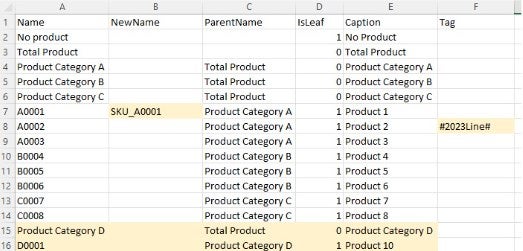
To perform a Hierarchy Synchronization:
- Navigate to the Models module and select Dimensions.
- Double-click the dimension to synchronize.
- Select Synchronize in the toolbar.
The Synchronize Hierarchy pane displays. - Select on these synchronization settings:
- Include additions and updates: The Hierarchy Synchronization only processes newly added members and updates to existing members. Any members not present in the source file aren't flagged as deleted members.
- Include additions, updates, and deletes: The Hierarchy Synchronization processes newly added members and updates to existing members. Any members not present in the source file are flagged as Deleted in the summary of results log file.
- Select how deleted members should be handled:
Even for members flagged as Deleted, the system never deletes members to prevent causing disruptive or unexpected changes. The available options are:- Flag deleted members in the summary results.
- Flag deleted members in the summary results log file and move those members to a parent member named To Be Deleted. The deleted members are grouped together under one main parent category, enabling manual cleaning at a later point.
- Select the file to upload.
- Select Import in the Synchronization pane.
- Validate the updates in a summary screen.
- Select Synchronize to confirm the changes.
- The hierarchy is synchronized.
You must review the members under the To Be Deleted parent and manually delete them as necessary.
Note: Delete members with caution as they may be included in Reports, Calculations, and Rules.

