

Access the Data Import Log to efficiently monitor and manage data imports within the Logs module.
Prerequisites
You must have the role authorization View, which is available under the Drill Back Details section of the Logs role authorizations.
Data import log header
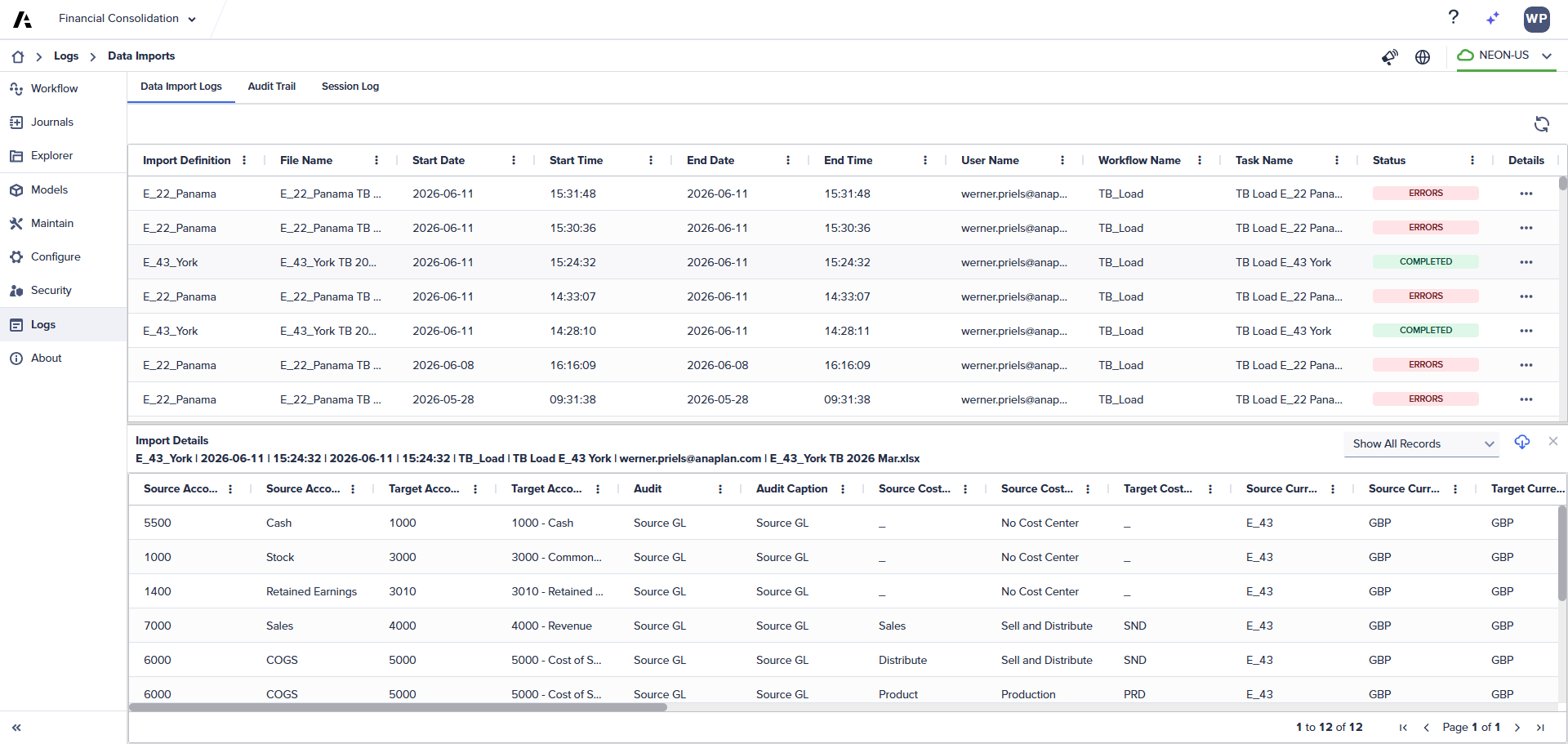
The Data Import Log table shows one row for each data import that is run. The table has columns displaying this information for each data import:
- Import Definition used.
- File name of the import comes from a flat file (Excel).
- Start date and time of the import.
- End date and time of the import.
- The user who ran the import.
- The Workflow from which import was executed.
- The Workflow task name from which the import was executed.
- The status of the import. The status can be one of these:
- Completed: The import was completed successfully.
- In Progress: The import is currently in progress.
- Errors: The import failed due to validation errors.
- Fail: The import failed due to an exception.
Select Refresh in the toolbar above the table to refresh the rows displayed in the log table.
View details
Right-click a row in the table or select the ellipsis in the Details column to open a context menu. Now select one of the two options:
- View Details: It displays a drawer with an import details table containing log details about that import, including validation error messages.
- View Source Details: It displays the drawer with the import details table containing the data that was brought into the model via that import.

Note: The View Source Details option is only available for an import if the Track Data Import option was enabled within the corresponding File Import or Data Transfer task when the import occurred. If the option wasn't turned on or the import didn't finish, this option won't work and will be grayed out in the context menu.
Select the View Details context menu option to display the Import Source Details pane. This pane consists of a details table containing log details for the selected import. This information includes the Run ID of the import, any log messages about errors that may have occurred during the import, and timestamps of when these messages were logged.

View Source Details
Select the View Source Details context menu option to display the Import Source Details pane. The pane displays a report showing the source and mapped values for any mappings between the staging table and the model during import.
The Source Details table includes columns for the imported data and any applied mappings for each dimension. If a dimension has mapped members, it'll have both Source and Target columns. Dimensions without mapped members will have a single column.
For non-measure dimensions, there are columns for both the source value and the target value. For example, if a source value is mapped to a member, the target value will be listed in a separate column.
If the source value and mapped value are identical, only the source value column will have an entry. If all source values for a dimension match their mapped values, only one column will be shown for that dimension. For the Account dimension, there's an additional column called Target Account Caption. This column helps users find the account by its full caption instead of its name.
When data imports involve many rows, the details table will display 1,000 rows per page. Users can navigate between pages using the arrows at the bottom right of the table.
Warning: If a model is edited to have its dimensions changed, the import details data are archived within the database and will no longer be visible via the Data Import Log. Additionally, if a data import definition is deleted or if it is edited to use a different model, the import details of all previously logged imports using that data import definition will no longer be visible via the Data Import Log.
Export to Excel
Work with large data imports in Excel for easier filtering and sorting. Use the Export Details option in the Import Details drawer to export all records for the specific import to an Excel file, not the ones on the current page.
The file naming convention should be:
RunID_ImportDefinitionName_StartDate_StartTime.xlsx
Where
- RunID = an integer used to identify the import
- ImportDefinitionName = the import definition name
- StartDate = the start date in YYYY-mm-dd format
- StartTime = the start time in HH-MM-SS format
The Export Details option in the Import Details drawer exports all log details for the import to an Excel file when you use it. In this case, the file naming convention is:
ImportDetails_RunID.xlsx
Where
- RunID = a GUID used to identify the import.

