

The Subprocess task creates a new sub workflow to help break the workflow into visually manageable or logical pieces. It creates a new workflow that returns back to the calling workflow process when the subprocess is completed.
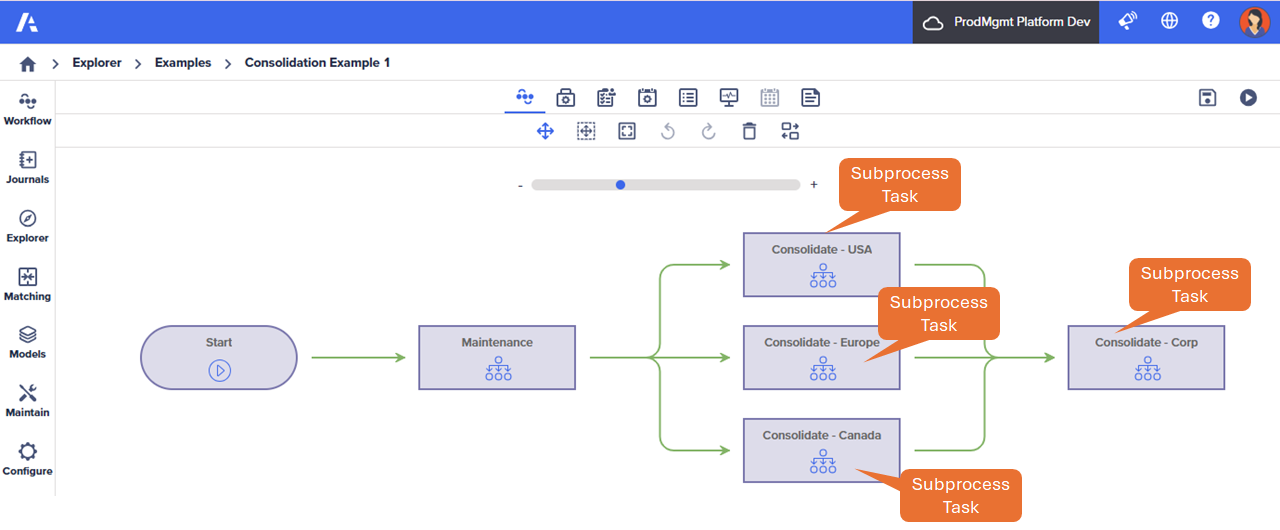
In this example, Subprocess tasks are used to make the workflow easier to understand and make sense.
Subprocesses can also be used in conjunction with Advanced Rules to control the flow of the workflow process. If the Advance Rules are set correctly, the Consolidate–Corp subprocess won't execute until the Consolidate–USA, Consolidate–Europe, and Consolidate–Canada subprocesses are completed.
Configuration Pane parameters
The key parameters include:
| Parameter | Description |
| Name | Enter the name that appears on the task. |
| Advance Rule | Specify how to advance to the task. The default is All predecessors have completed. |
Configure a Subprocess task
To configure a Subprocess task:
- Drag the Subprocess task onto the Workflow Editor canvas to add it.
Find the Subprocess task in the Workflow Controls section of the Workflow toolbox. - Select the Subprocess task and select the Edit icon to edit the parameters in the Task Configuration pane.
- Fill in the required parameters.
- Select OK to apply changes in the Task Configuration pane.
- Select the Subprocess task to edit and then select Open in the pop-up menu.
- Add tasks required for the sub-workflow in the subprocess.
- Select X to close the Subprocess Workflow Editor.
- Select Save to save the workflow.
- Select Play in the Workflow Editor toolbar to start the workflow.
The workflow process starts.

