

A Log Message task logs a message to the Process Log. Use this task to output messages according to the progress of the task or as a troubleshooting tool when developing complex workflows.
The Process Log can be found in the Workflow Editor. Only users with the role authorization Workflow Management can view the Process Log in the Workflow Editor.
Configuration Pane parameters
The key parameters include:
| Parameter | Description |
| Name | Enter the name that appears on the task. |
| Message | Enter the message to be displayed in the log. |
| Level | Select the message's level of importance.
|
| Timeout | Enter the time that the system will wait for the activity to complete. |
| Advance Rule | Specify how to advance to the task. The default is All predecessors have completed. |
Configure a Log Message task
To configure a Log Message task:
- Drag the Log Message task onto the Workflow Editor canvas to add it.
Find the Log Message task in the Workflow Controls section of the Workflow toolbox. - Select the Log Message task and select the Edit icon to edit the parameters in the Task Configuration pane.
- Fill in the required parameters.
- Write plain text messages or the messages that include workflow syntax that is resolved at run time.
- When the message is logged
{Subprocess.Name}is resolved, which is the entity member that the For Each process is currently iterating through.
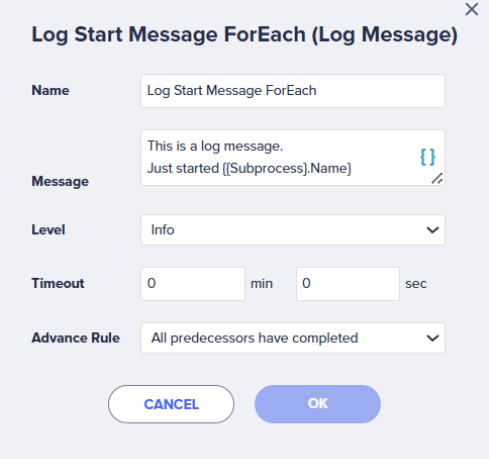
- Select OK to apply changes in the Task Configuration pane.
- Select Save to save the workflow.
- Select Play in the Workflow Editor toolbar to start the workflow.
The workflow process starts. - When the workflow process is executed, the messages will be logged to the Process Log.
- Navigate to the Process Log by selecting the Process Logs toolbar icon in the Workflow Editor.

