

A Decision task changes the flow of the tasks depending on a logical decision. The next step to be run is based on the results of the expression. The condition is a SQL, or C# expression that'll evaluate to a 1 or 0.
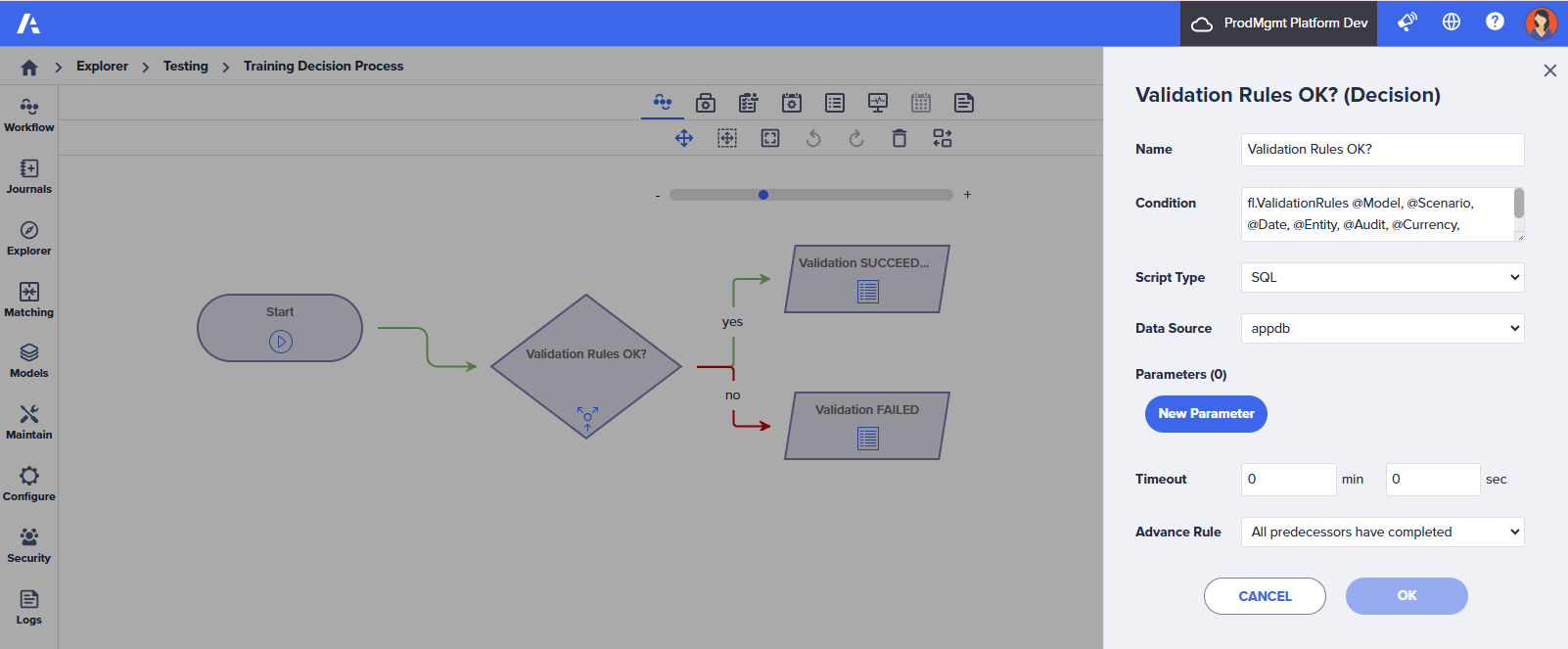
- In this example, the Decision task runs a process that checks if the system's validation rules have passed or failed. This task considers both the status of the Enforce field and the defined tolerance.
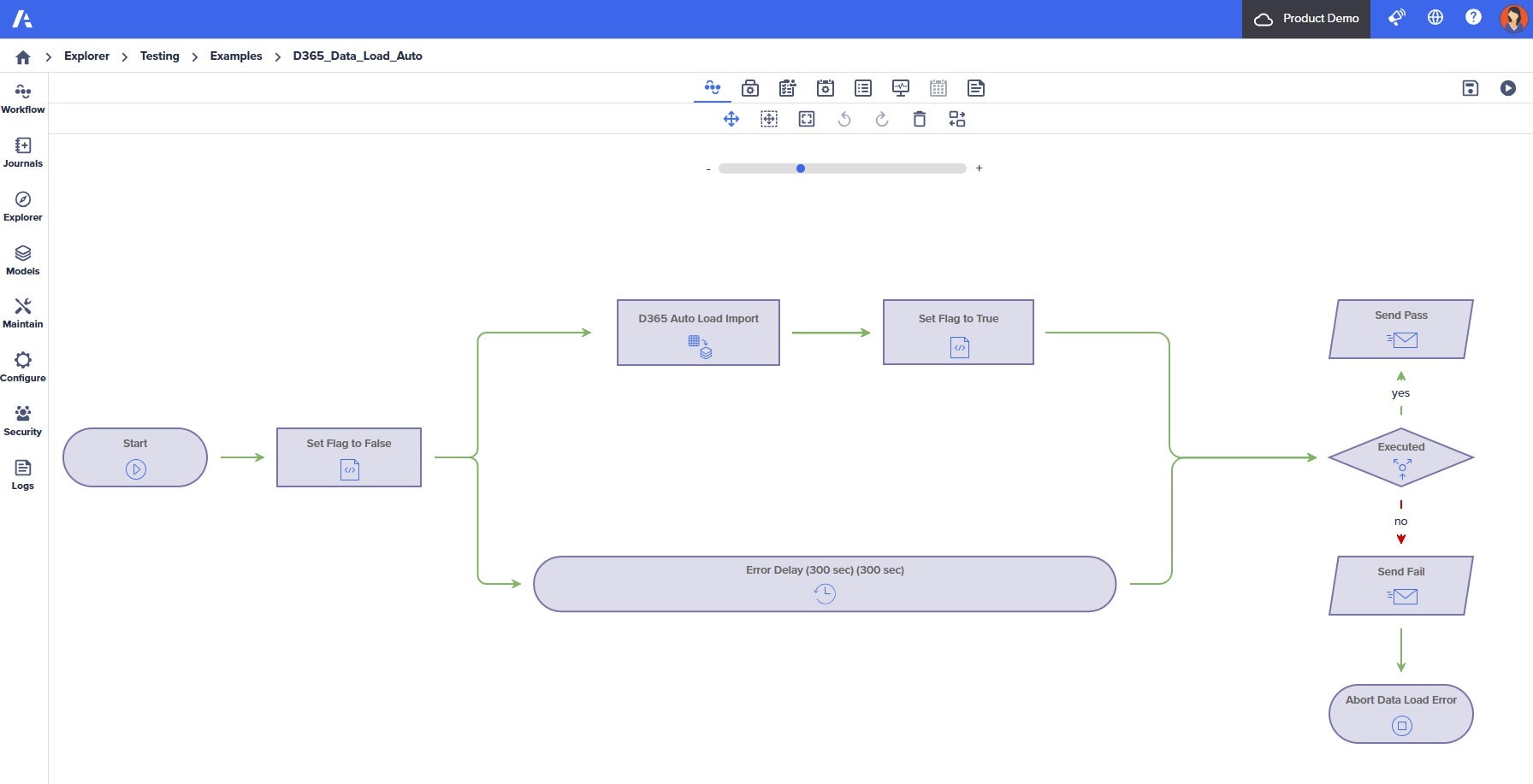
- In this example, a Decision task is used to determine whether a Data Transfer task was completed successfully. A corresponding email is then sent using the Send Email task.
Configuration Pane parameters
The key parameters include:
| Parameter | Description |
| Name | Enter the name that appears on the task. |
| Condition | An expression that'll evaluate to a 1 or 0. This field works together with the Script Type parameter. For example, DateTime.Now.Month == 12. |
| Script Type | Select the type of script to be run:
|
| Data Source | If the Script Type is SQL, then the Data Source indicates the schema to run the SQL statement against. |
| Parameters | If the script requires any parameters, they are defined in the Parameters section. |
| Timeout | Enter the time that the system will wait for the activity to complete. |
| Advance Rule | Specify how to advance to the task. The default is All predecessors have completed. |
| Enforce | Specify whether the validations are hard (enforced) or soft. For example:
A Decision task must be used within the workflow to leverage this feature. |
Configure a Decision task
To configure a Decision task:
- Drag the Decision task onto the Workflow Editor canvas to add it.
Find the Decision task in the Workflow Controls section of the Workflow toolbox. - Select the Decision task and select the Edit icon to edit the parameters in the Task Configuration pane.
- Fill in the required parameters.
| Parameter | Value |
| If the Script Type is SQL |
|
| If the Script Type is C# | Enter an expression that'll evaluate to a 1 or 0. |
- Select OK to apply changes in the Task Configuration pane.
- Select Save to save the workflow.
- Select Play in the Workflow Editor toolbar to start the workflow.
The workflow process starts.

