You can connect CloudWorks to Azure Blob Storage with a shared access signature (SAS) token.
To create a new CloudWorks connection to Azure Blob Storage, you need:
Create a CloudWorks connection
To create a CloudWorks connection:
- Select CloudWorks from the from the top-left navigation menu.
- Select Connections from the left-side panel.
- Select New connection.
The Connect to a service dialog displays. - Select Azure Blob from the Service dropdown.
The dialog expands. - Complete the dialog entries:
- Enter a new Connection name. Use a unique name of up to 60 characters that starts and ends with a letter or number. Letters used must be in the Latin alphabet . You can include spaces, hyphens (-), and underscores (_), but no other special characters.
- Select SAS-based from the Auth type dropdown, and enter these details from your Azure account:
- Storage account name
- SAS token
- Container
- Select Connect.
Also see the Microsoft documentation for more information about how to create SAS tokens for your storage containers.
Set your Azure account
You set your Azure storage account to integrate with your Anaplan models via CloudWorks.
Ensure that your SAS token remains valid for the entire duration of your integration. If it expires, the integration will not work.
You can either create a new Azure storage account or use an existing one. Shared access signature (SAS) is a URL that grants restricted access. Use SAS when you want to grant access to storage account resources for a specific time range. With SAS, you need not share your storage account key.
Example account configuration:
- Create or open an Azure storage account.
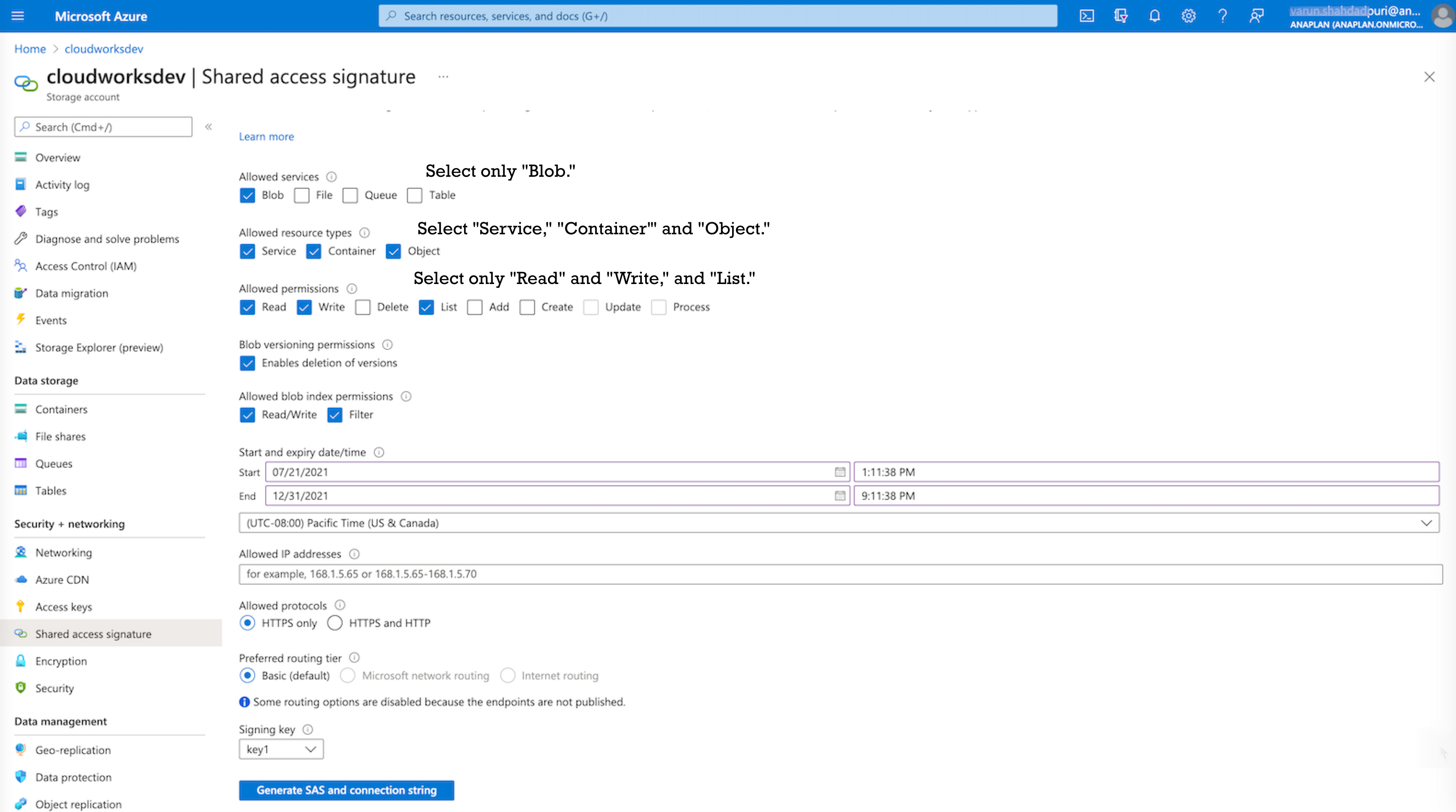
- Select your services, resource types, and permissions:
- Allowed services: select only Blob
- Allowed resource types: select all three, Service, Container, and Object
- Allowed permissions: select only Read, Write and List.
Set these three categories as stated, or your integration won't be valid.
- Enter your permission Start and End, dates, and times.
- Select the time zone from the drop-down list.
- Enter the Allowed IP addresses.
- Select your preferred routing tier (Basic, Microsoft network, or Internet routing).
- Select your Signing key from the drop-down list.
- Select Generate SAS and connection string.
The SAS and connection strings display.
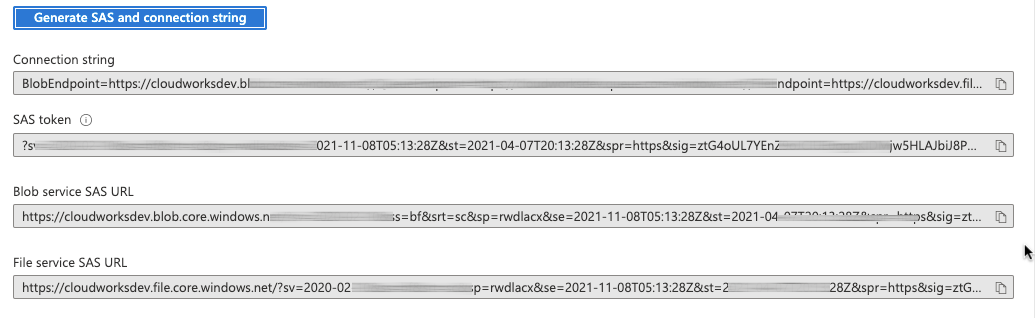
You can't use SAS tokens generated at the blob (file) level. To be compatible with CloudWorks, generate your SAS tokens at either the Storage Account or Container levels in Azure.
CloudWorks fully supports Azure stored access policies .
Set your Azure container
An Azure container is a standard package of software. Containers bundle an application's code together with configuration files and libraries.
You can either create a new Azure container or use an existing one. Example container configuration:
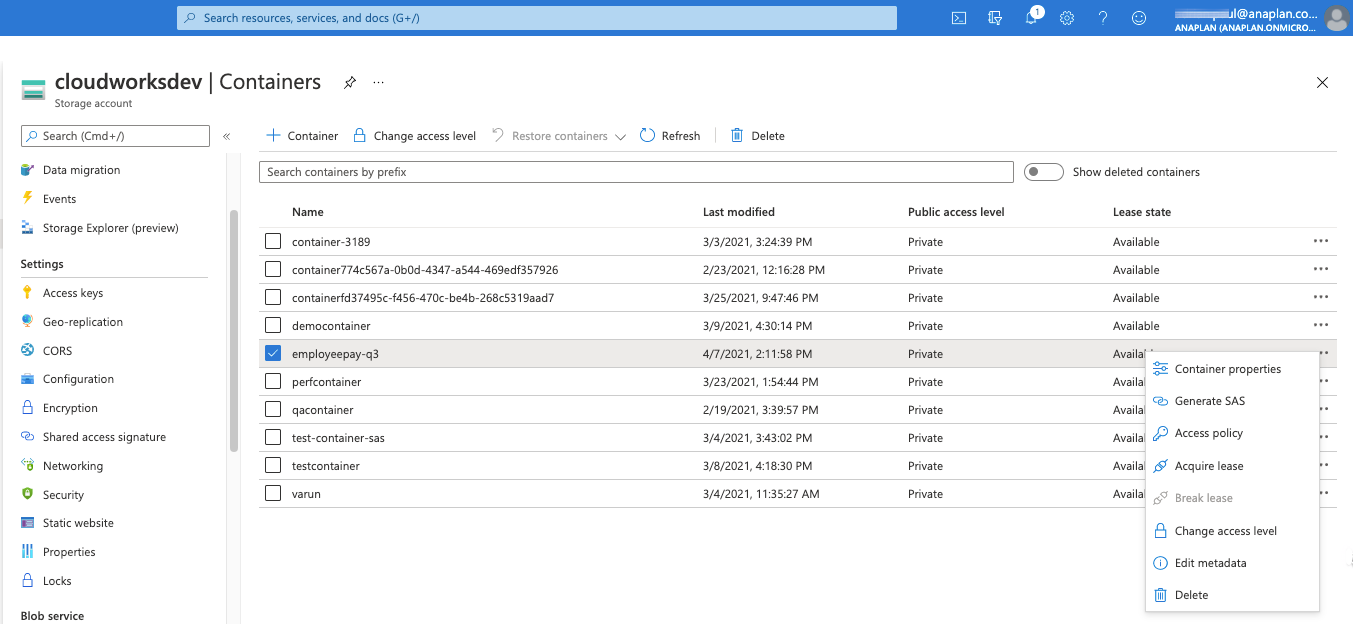
- Create or open an Azure storage container .
- From your list of containers, select the to the right of the Lease state column.
- Select Generate SAS from the dropdown list.
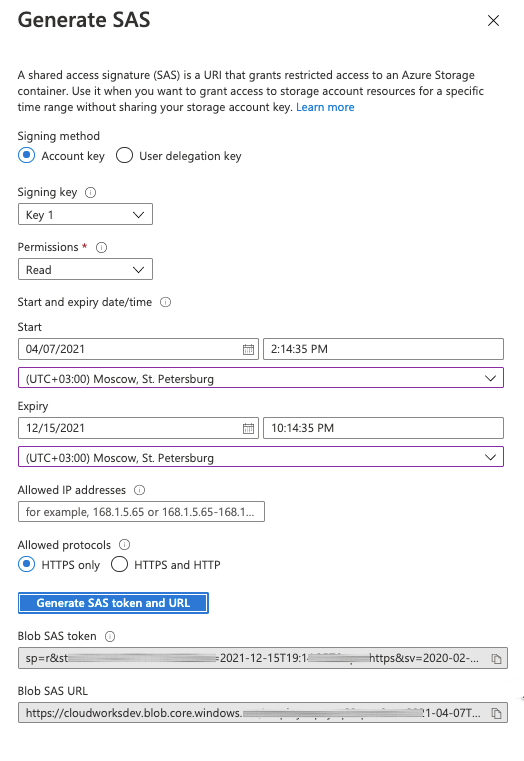
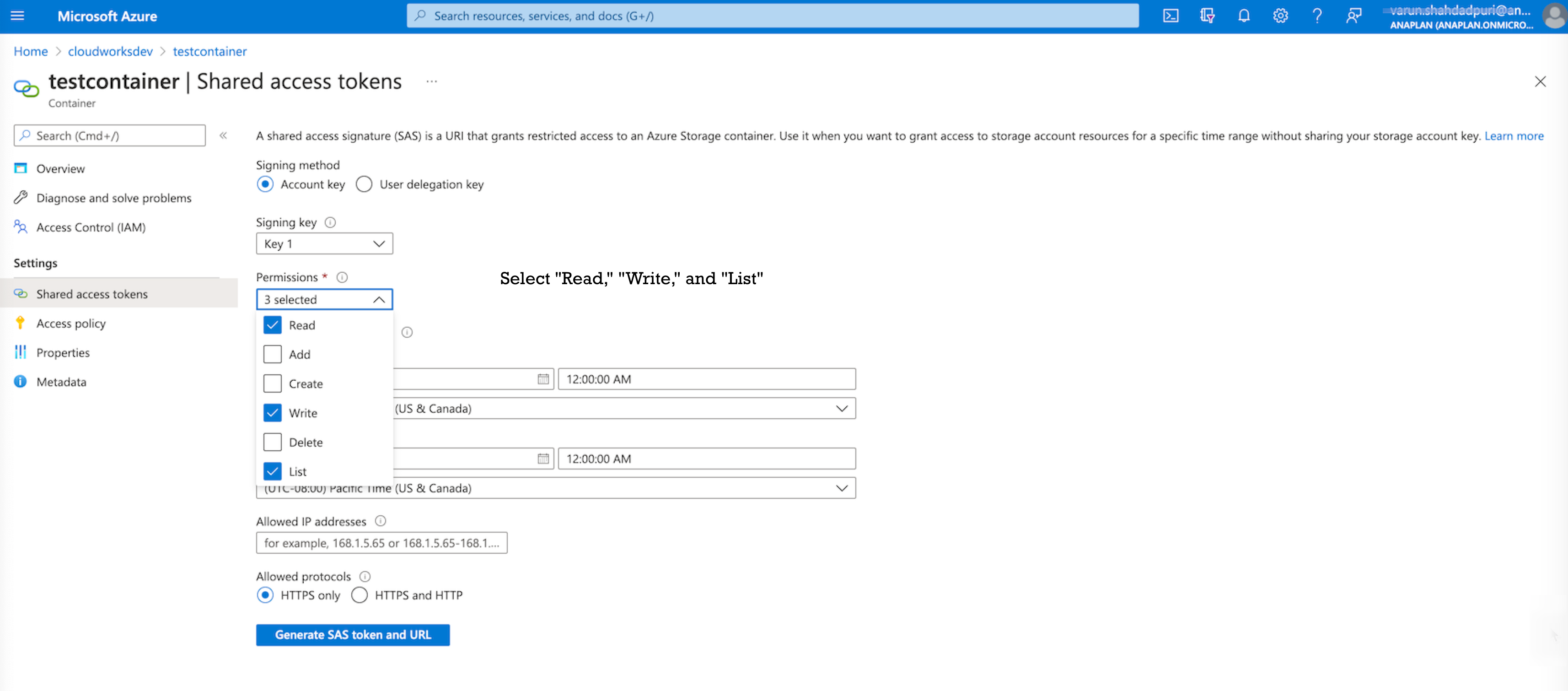
- From the Generate SAS dialog:
- Select the Signing key in the drop-down list.
- Select the Permissions: Read, Write, and List.
(Refer to the 'Permissions' screenshot, bottom of this page.) - Enter the permission Start and End, dates, and times.
- Select the time zone from the drop-down list.
- Enter the Allowed IP addresses.
- Select the Allowed protocols.
- Select Generate SAS token and URL.
The Blob SAS token and URL display.