

Relational writeback in Anaplan XL lets writeback operations call SQL stored procedures. You can use these steps to store more data, like text comments, or change the written values before you use them in the cube.
Analysis Services Cube Configuration
You can enable the cube for writeback by using the standard approach.
- Create an additional table, RWritetable, that mirrors the fact table structure in the source SQL database, and add it to the data source view.
- Add an additional ROLAP partition to the AS database that uses the RWritetable.
- Keep the standard writeback table in place, even though you won't really use it.
Analysis Services 2008 R2
In Analysis Services 2008 R2, the additional table RWritetable is optional. Instead, you can change the writeback table's storage mode to ROLAP. This lets the stored procedure update the standard writeback table directly.
Note: If you use this approach, the SQL updates can't update the same slice or measure that the user writes back, but they can update other measures or slices. This is useful, for example, in a workflow situation to move data from one slice to another.
Stored procedure configuration
Create a stored procedure within the source SQL database, configured to the rules below. Anaplan XL calls this stored procedure only when it performs a relational writeback. The stored procedure can also call other stored procedures as needed. The procedure’s basic job is to populate the RWritetable.
Procedure Name
[dbo].[XL3_DatabaseName_CubeName_Writeback]
Replace any spaces in the database or cube name with ‘_’.
Parameter Names
@Dimension_Hierarchy
(Hierarchy unique name without the [ ], replace “.” With “_”).
The values for members are the member keys, passed as NVarChar(max).
@Value
- Values are passed as T-SQL float (.Net double).
- For measures, the measure caption is passed because there’s no row key.
Example
This is the simplest case. It expects the entered value as Budget, rather than handling the possibility of several measures being available for entry:
- AS Database Name: Retail
- AS Cube Name: Retail Forecast
- Created Relational Writeback table: RetailRelWriteback
CREATE PROCEDURE [dbo].[XL3_Retail_Retail_Forecast_Writeback] @Accounts_ChartOfAccounts nvarchar(50), @Measures nvarchar(50), @Period_Period nvarchar(50), @Unit_Category1 nvarchar(50), @Unit_Category2 nvarchar(50), @Unit_Category3 nvarchar(50), @Unit_Category4 nvarchar(50), @Unit_Category5 nvarchar(50), @Unit_Organisation nvarchar(50), @Value double precision AS BEGIN SET NOCOUNT ON; insert into [dbo].[RetailRelWriteback]( [Account], [Unit], [Period], [Budget], [Forecast], [Actual], [Phasing], [cCurrency], [nEntity] ) values( @Accounts_ChartOfAccounts, @Unit_Organisation, @Period_Period, @Value, NULL, NULL, NULL, NULL, 1 ) END GO
Anaplan XL client settings
By default, the writeback setting uses standard Analysis Services.
To switch to relational:
- Go to Anaplan XL > Options > Workbook Options.
- Select the Writeback tab.
- In the Connection writeback settings section, select Relational writeback.
- Select Configure to specify the relational database source for the connection.
- Modify the Type, Server, and Database. The method can vary by connection.
- Select OK and OK again.
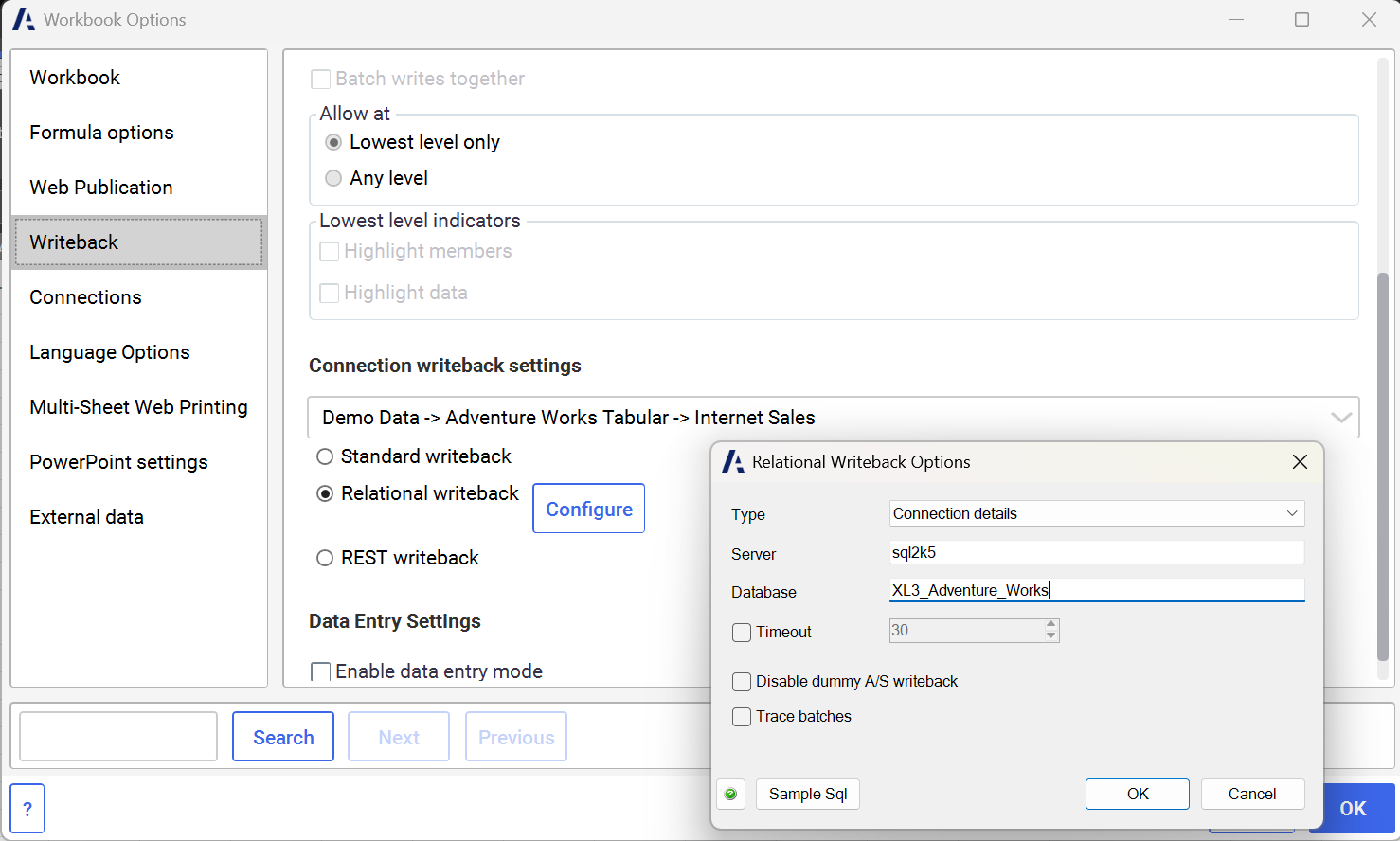
Once you select Relational writeback in the Workbook Options, the writeback process stays the same for the user. But it calls the stored procedure you set in the Stored procedure configuration section above.
The change is now available for the connection. Relational writeback works for grids and the writeback formula (XL3LookupRW and XL3DoWriteback).
Note: Relational writeback supports standard workbook data connections.

