

Alerts user of incorrect data input. If the soft validation failed, user could save data back to the data source.
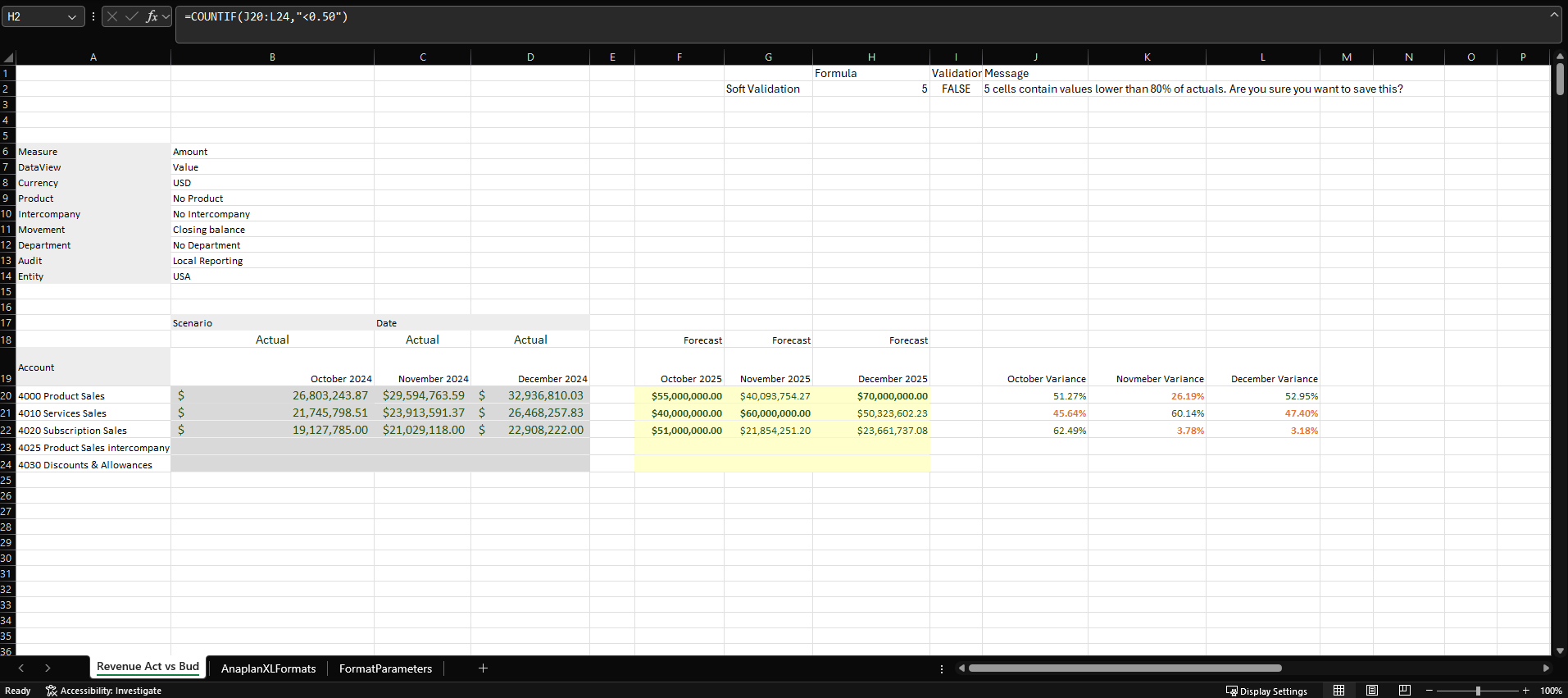
In the example, cascading Excel formulas build logic that alerts the user when forecast revenue is below 50% of last year's actuals.
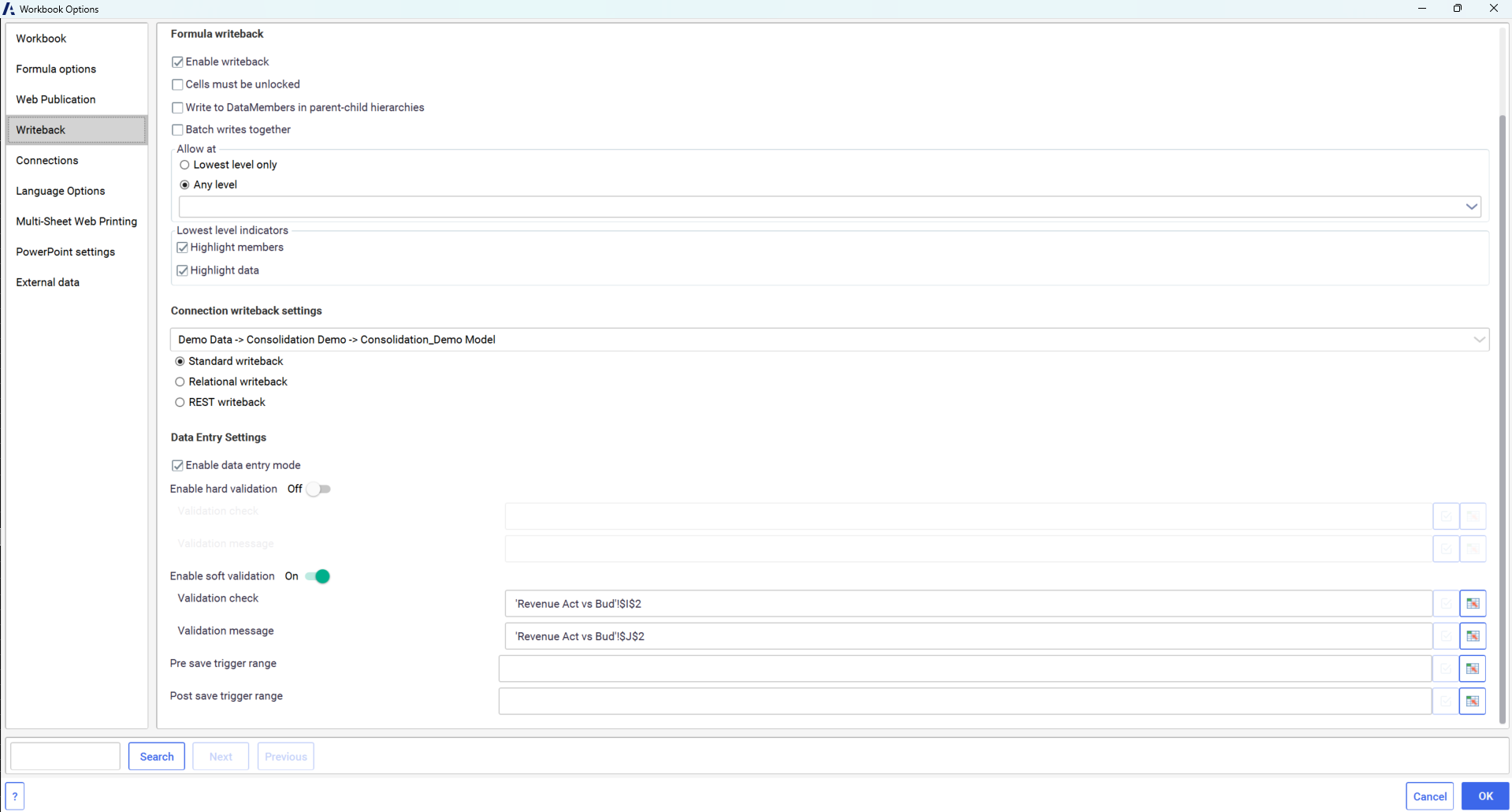
To create a soft validation, first select the Enable writeback and Enable data entry mode settings in Workbook Options. Then, link the validation to a cell containing a logical check and customize the message.
To create a soft validation:
- Create a workbook and create a small table. In the first column, enter the validation type. For example, enter Soft validation into a cell.
- The second column type: Formula.
- The third column type: Validation.
- The fourth column type: Message.
- Enter a formula into the cell below Formula. For example, cell
H2contains the formula,=COUNTIF(I20:K24,"<0.50"). This counts the values below 50%. - Enter a formula to return the word TRUE if the formula returns the Boolean 1 and FALSE for 0. For example, cell
I2contains the formula=H2=0. - Type a message in the cell below Message. For example, type
=CONCATENATE(H2 & " cells contain values lower than 80% of actuals. Are you sure you want to save this?").
- Go to Anaplan XL > Tools > Workbook Options.
- Select the Writeback tab.
- In the Formula writeback section, check Enable Writeback.
- In the Data Entry Settings section, check Enable data entry mode and toggle Enable soft validation.
- Next to Validation check, select the Pick range icon, choose the cell containing the formula. For example,
H2, and choose OK. - Next to Validation message, select the Pick range icon, choose the cell containing the message. For example,
J2, and choose OK. You can type a message in the text box instead of typing it in the workbook.
11. Enter data in the appropriate cells to test for passing and failing validation.
12. Go to Editing > Save.
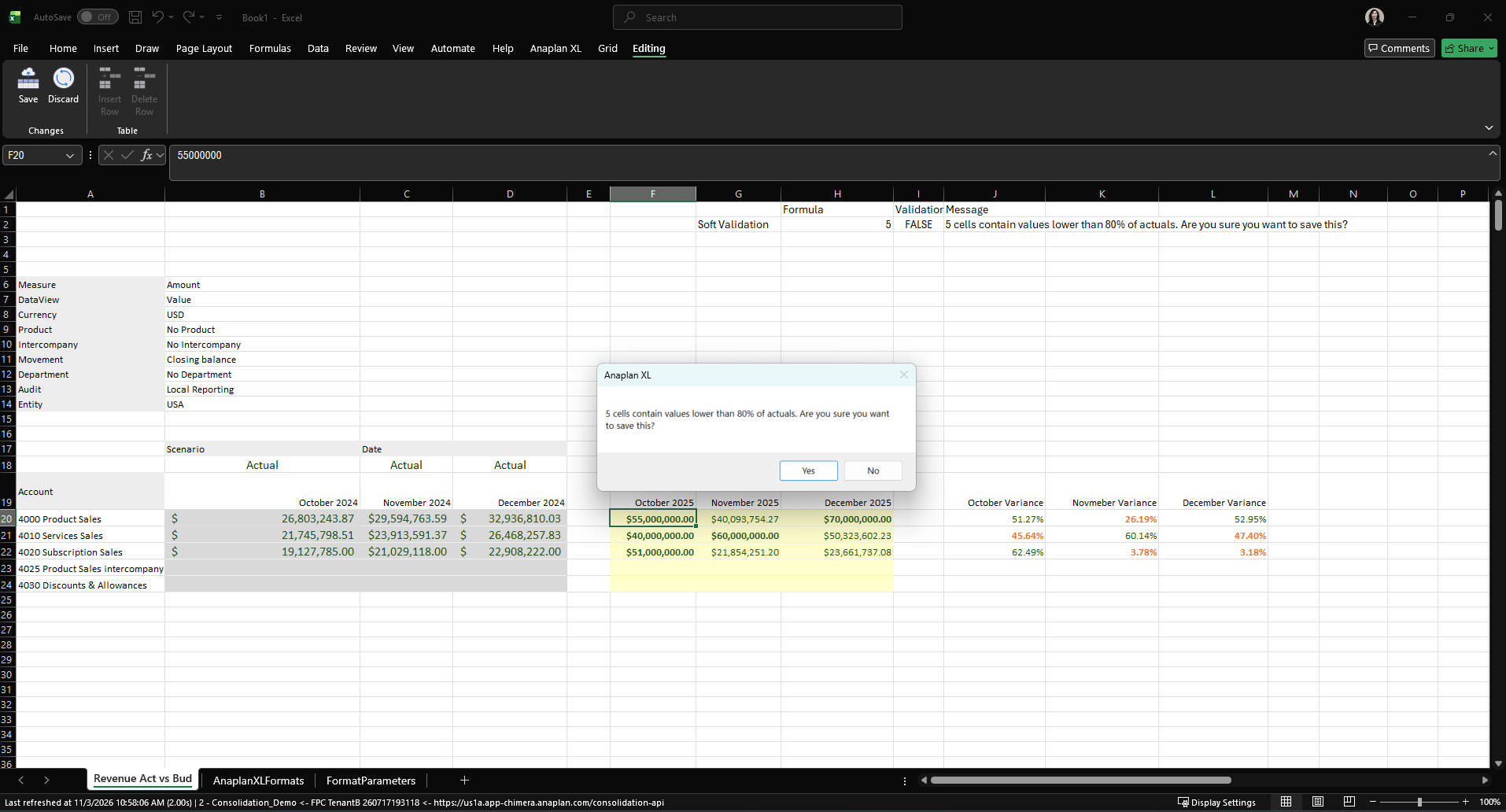
The example formats or locks cells dynamically using custom formatting areas.
Note: Selecting Enable data entry mode disables the Writeback pane. You must submit your data using the Editing menu and select Save.

