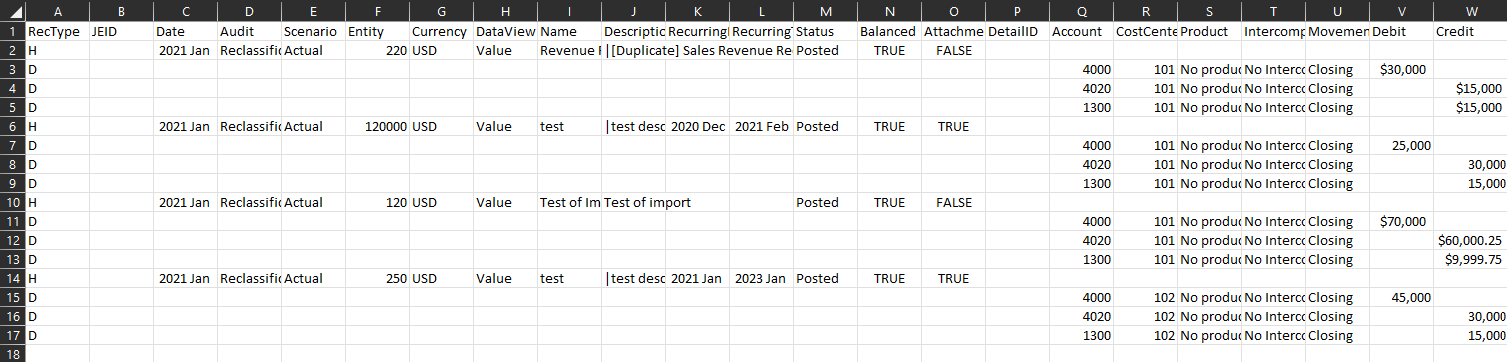
If you have multiple general ledger journal entries to bring into your Anaplan Financial Consolidation system, import them in bulk from the Journals module.
To import:
- Select Import to add a bulk import of journal entries that include headers and details to your system.
- Create a .CSV file or select Export from the toolbar as a template.
Note: If you use the export file as a template, you need to clear the data in the file, especially the JEID and DetailID columns. If you exported the JEs as a template, Financial Consolidation ignores the Status, Balanced, and Attachment columns when importing.
The key requirements for the import file include:
| Requirement | Action |
| RecType | The file must contain the RecType column.
|
| JEID | Clear the JEID for each row of a journal entry. |
| Date | This field must be formatted as Text in the Excel file. |
| Other dimensions | The dimensions listed as Headers, Details, or None from the Journal Configuration File must exist in the file. |
| Order | The order of the dimensions doesn't matter as long as the Header and None dimensions are placed before the Detail dimensions. |
| DetailID | Clear a DetailID number for each detail for a journal entry. |
| Name | Enter the name of valid members for the required dimensions for both the header and detail sections. |
| Debit and Credit | Enter numerical or currency amounts in the debit and credit columns. |
Once the file is imported, the user interface runs a validation of the journal entries. The bulk import adds only new journal entries. Existing journal entries aren't updated, even if you exported the journal entries and tried to re-import them. This case scenario creates duplicates.