

Account Netting involves adjusting two accounts, such as accounts receivable (AR) and accounts payable (AP), to arrive at a net balance. The balance is shown as an asset or a liability based on the debit or credit balance. The net value of two accounts is displayed instead of two separate accounts.
Under the Account Netting rule, the system reclassifies the net balance to accounts receivable when AR exceeds AP, and to accounts payable when it doesn't.
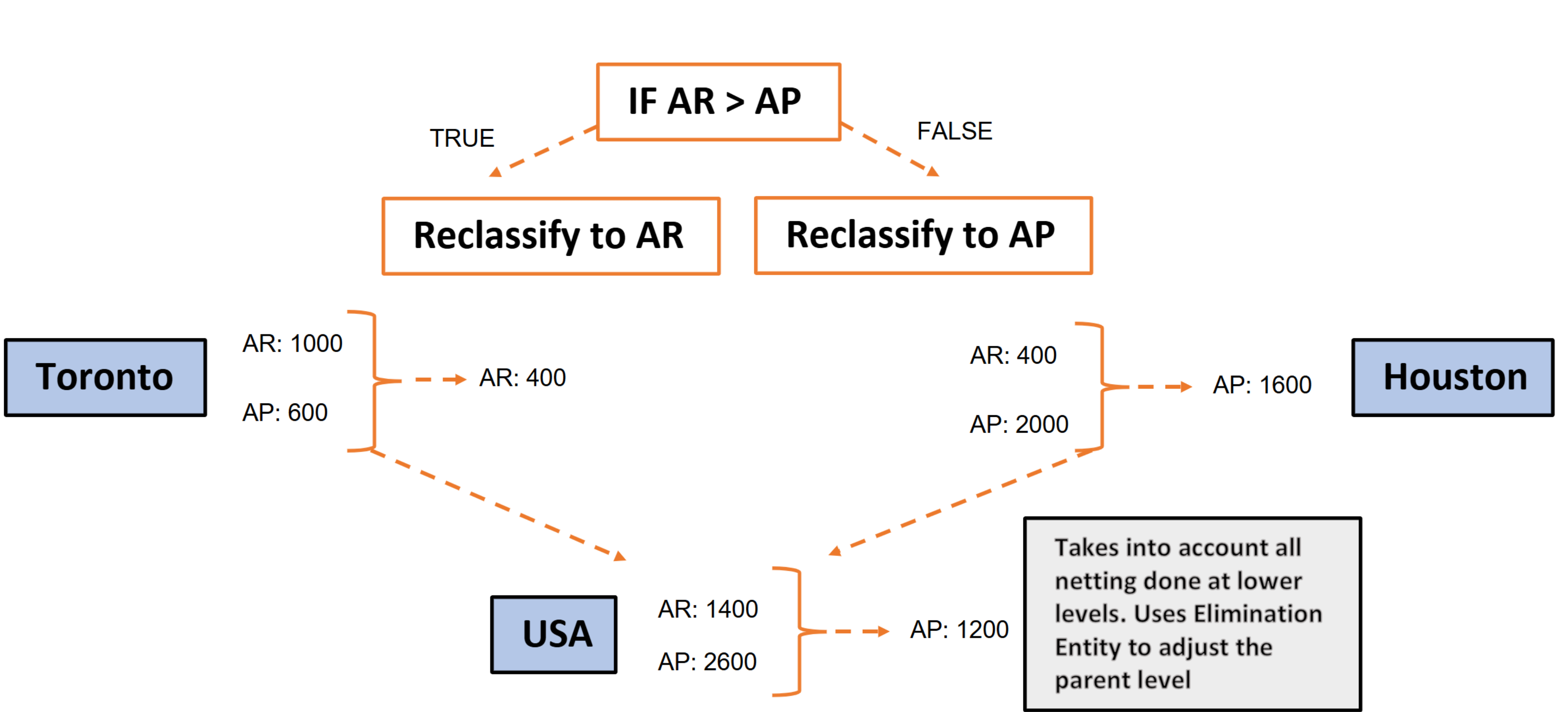
In this example, at the Toronto entity, accounts receivable carries $1,000 and accounts payable carries $600. Since AR exceeds AP, the system reclassifies the net amount to accounts receivable, leaving $400. At the Houston entity, accounts receivable carries $400 and accounts payable carries $2,000. Since AP exceeds AR, the system reclassifies the net amount to accounts payable, leaving $1,600.
At the parent USA entity, the system aggregates the Entity-level balances of accounts receivable of $1,400 and accounts payable of $2,600. It accounts for all netting completed at the lower levels and uses an elimination Entity to adjust the parent. Since AP exceeds AR at the consolidated level, the system reclassifies the net amount to accounts payable, leaving $1,200.
Companies also use netting to reclassify a negative balance to a liability account, such as Negative Cash to Overdraft account.
You can perform account netting at different levels in the Entity hierarchy. Anaplan Financial Consolidation will start the netting process at the lowest level of the entity. It'll continue through the different levels until it reaches the top level.
The system records Account Netting at the leaf entity in a separate Audit member in the Corporate Adjustment layer. The system also performs Account Netting at the parent level. It considers netting performed at lower levels. The system performs Account Netting at the parent level using Elimination Entities.
Account netting example
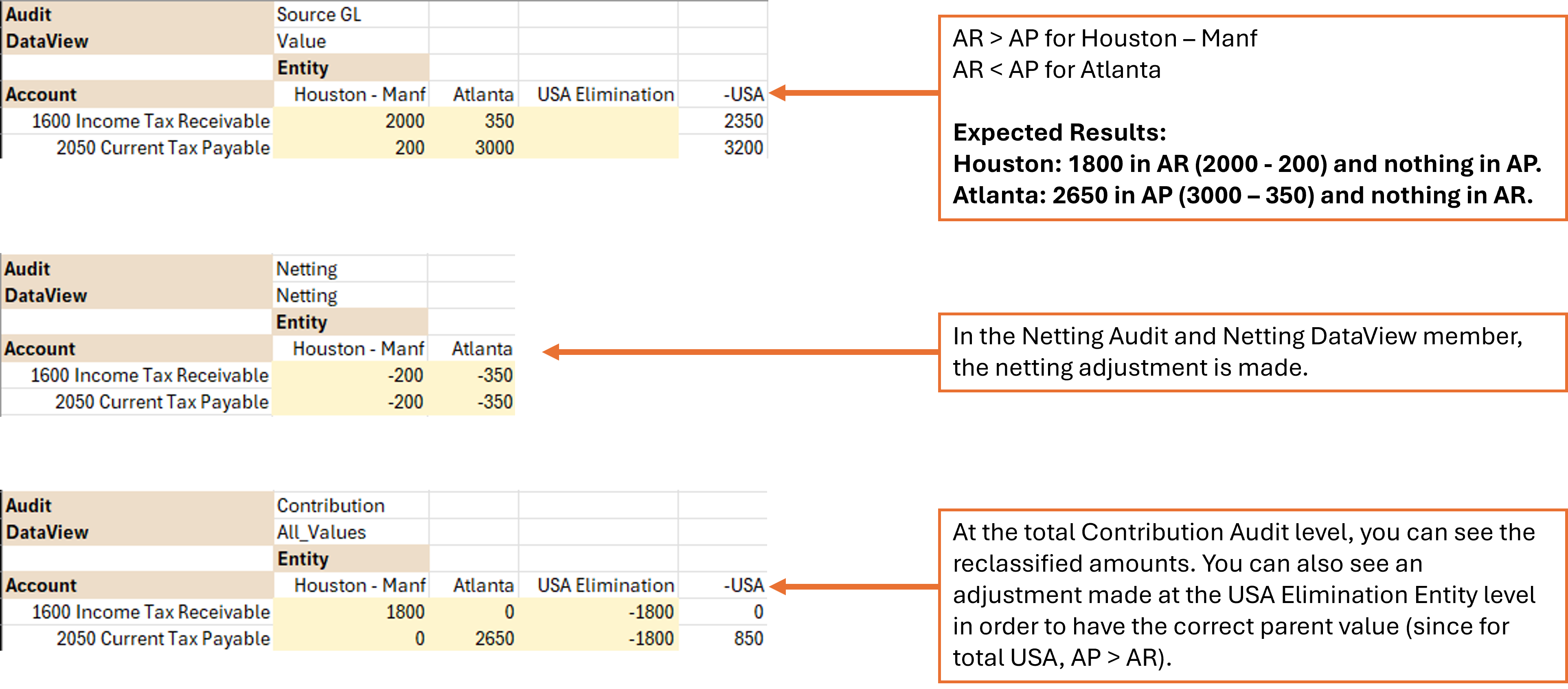
In this example, the system nets Income Tax Receivable (account 1600) against Current Tax Payable (account 2050) at two entities, Houston-Manf and Atlanta.
In the Source GL, Houston-Manf reports $2,000 in Income Tax Receivable and $200 in Current Tax Payable, so AR exceeds AP. Atlanta reports $350 in Income Tax Receivable and $3,000 in Current Tax Payable, so AP exceeds AR. The system expects:
- Houston-Manf to net to $1,800 in accounts receivable and $0 in accounts payable
- Atlanta to net to $2,650 in accounts payable and $0 in accounts receivable.
The system records the netting adjustment in a separate Netting Audit member. It debits Income Tax Receivable and Current Tax Payable by $200 at Houston-Manf and by $350 at Atlanta.
At the total Contribution level, the reclassified amounts appear: Houston-Manf shows $1,800 in Income Tax Receivable and $0 in Current Tax Payable, while Atlanta shows $0 in Income Tax Receivable and $2,650 in Current Tax Payable. Because AP exceeds AR for the total USA parent, the system makes an additional adjustment at the USA Elimination Entity to produce the correct parent value.
Treatment of non-specified dimensions
Not all dimensions are specified in the netting rules. For example, the Intercompany dimension or any non-standard consolidation dimensions such as Products or Cost Centers.
For unspecified dimensions, the source is always the default Reporting member for that dimension. The target will be the default input member for that dimension. The source used is the single aggregation for that dimension. For example, in the CostCenter dimension, Total CostCenter is the default reporting member and No CostCenter is the default input member.
Netting methods
Based on the consolidation system settings, you can choose between two processing methods:
- Reverse Details — Both source sets are completely reversed, and the net consolidated balance is reclassified into the selected target account.
- This option uses a dedicated setting called Reverse Details in the Account Netting field in the Settings form.
- Net Details — Only the lower side, the set with the smaller balance, is fully reversed and reclassified into the target account, while the higher side, the set with the larger balance, retains its original account.
- This option uses a dedicated setting called Net Details in the Account Netting field in the Settings form.
Configure Account Netting
To configure Account Netting:
Apply system settings
- Select the Maintain module and choose Settings from the Administration Card.
- Next to Account Netting, select the value text box, and type a value such as Net Details, Reverse Details, or leave it blank. If you leave the Account Netting blank, the system does the Account Netting with a single account in the source.
- Select the Save icon in the upper toolbar, then close the Settings form.
Add Account Netting rule
- Select the Maintain module and select Account Netting in the Calculation card.
- Select the Create icon in the upper toolbar to add a new rule to the Account Netting form.
- Select the Save icon in the upper toolbar.
- In the Explorer module, run the calculation from Global > Consolidation > Processes > Run Netting workflow or Run All workflow.

