

More complex formatting scenarios or grid specific formatting are handled directly on the format sheet. Any of the cells on the format sheet can be formatted directly in Excel, and will then be applied to the appropriate area of the grid when the grid is next refreshed.
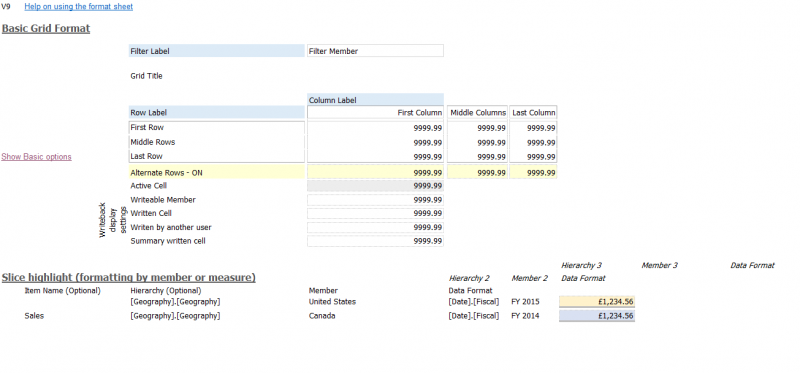
The main body of the grid is in the Basic Grid Format section, C5:I16. You can set the data cells, column and row member names, and the filter area directly here.
| Item | Description |
| Alternate Rows | Alternate row formatting can be used by setting the dropdown selector in C18 to On and then applying the format required in C18:I18. |
| Active Cell | If a grid has "Track grid's active cell" and "Apply tracking formatting" enabled (set in the grid's Properties > Interaction), the format applied to the active cell is set here. |
| Writeback Leaf Level | The grid can display the lowest-level data and members in a specific format where required, by setting E22:28 as required |
| Conditional Formatting | Review Apply conditional formatting for more information. |
Grid Specific Formatting
Where multiple grids exist in a workbook, there may be a requirement to format a slice of data in a specific way in grid A, but not in grid B. To apply grid-specific formatting, edit the AnaplanXLFormats sheet and supply the grid name for the proper slice in column B. For example, you can restrict the blue formatting to the Canada FY 2014 slice in the Sales grid, while the formatting for the United States FY 2015 isn't limited and applies to all grids. To use this approach, go to Grid Properties and, on the Appearance tab, enter a name for the grids.
You can also use wildcards in the GridName field. For example, all grids starting with Sales would use this format (enter the grid name as Sales*).
The AnaplanXLFormats sheet file location is set in Anaplan XL Options.
Review Formatting Grids or view the Grid Formatting video for more information.

