

Use the Summary screen in the Administration console to review details about your purchased licenses and their usage.
As a user administrator assigns user licenses, the Summary screen reflects the license usage.
To access the Summary screen:
- Select Administration from the top-left navigation menu.
- Select Summary from the left-side panel.
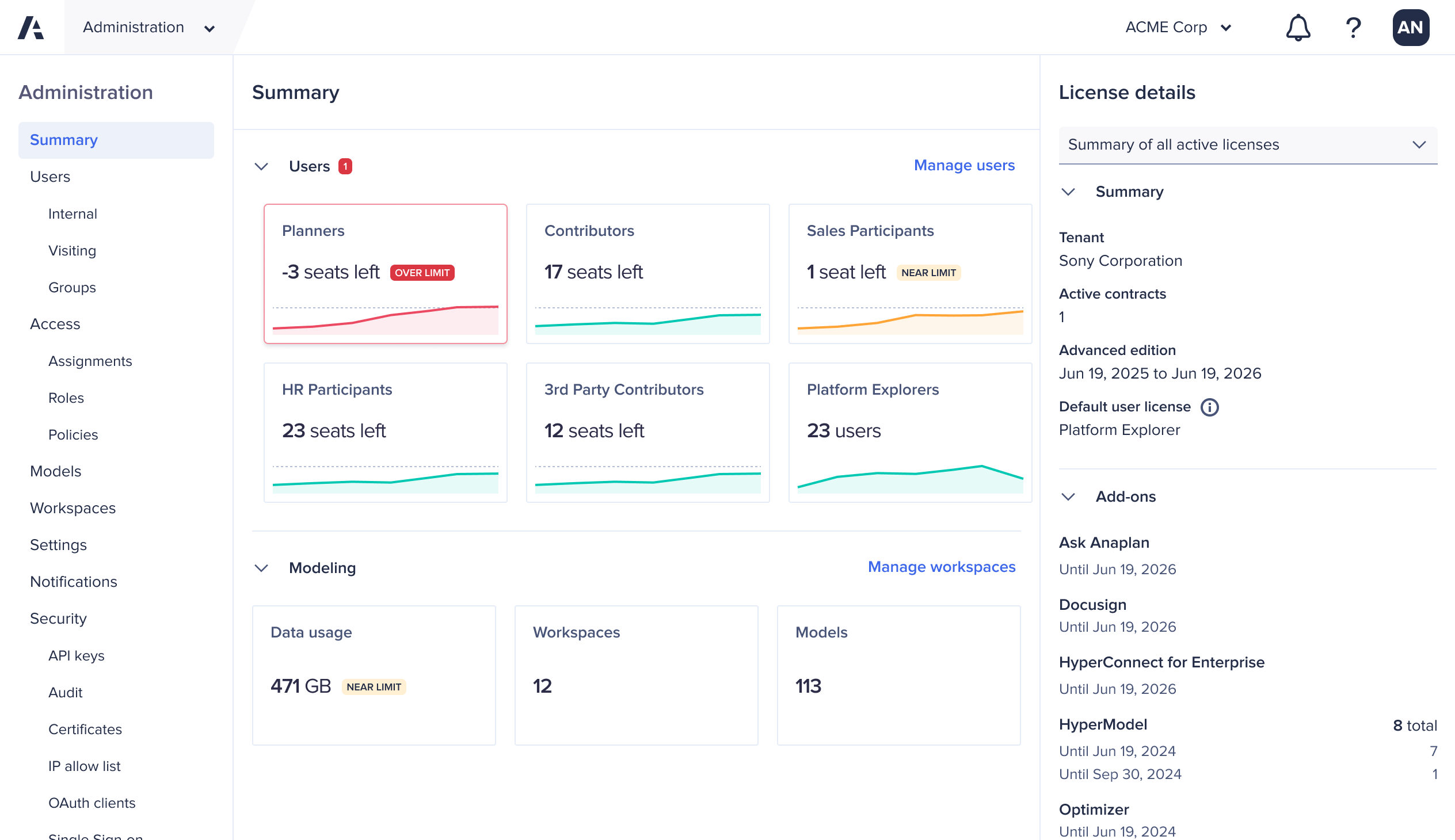
Note: The image above is an example of what might display on your Summary screen. The information that displays depends on your license terms and purchases.
Users section
The Users section shows how many users are assigned to each license type. The colors of the license line charts represent how many seats are available:
- If a line chart is green, the license type has more than five seats available.
- If a line chart is yellow, the license type has five or less seats available.
- If a line chart is red, the license type has exceeded the license limit.
The line charts show data points for every week. When you move your cursor over a line chart, you'll see data points and tooltips with more details about the license seats. The tooltips display the start date of the week when the data point was collected and the number of seats used during that week.
Example: If the tooltip shows the date as July 19, 2026, the data collected is for the week of Sunday, July 19, 2026 through Sunday, July 26, 2026.
The Users section also includes a Manage users link. If you select Manage users, it brings you to the Internal screen.
License details panel
The License details panel display in the right-side panel. You can see license and contract details.
- Summary: Displays tenant and contract information.
- Add-on: Lists your current add-ons and their expiration dates.
- User licenses: Displays the amount of licenses you purchased, as stated in your contract.
Modeling section
The Modeling section lists this modeling information:
- Data Usage: How much storage in gigabytes (GB) has been used.
- Workspaces: How many workspaces are in your tenant.
- Models: How many models are in your tenant.
If you select Manage workspaces, it brings you to the Workspaces screen.
Anaplan AI section
The Anaplan AI section shows the amount of AI usage credits consumed by the tenant compared to the current credit allocation.
If you select the Anaplan AI section, it takes you to the AI usage report.

