

View reports in the Anaplan mobile app. Reports enable users to build slide decks and reports.
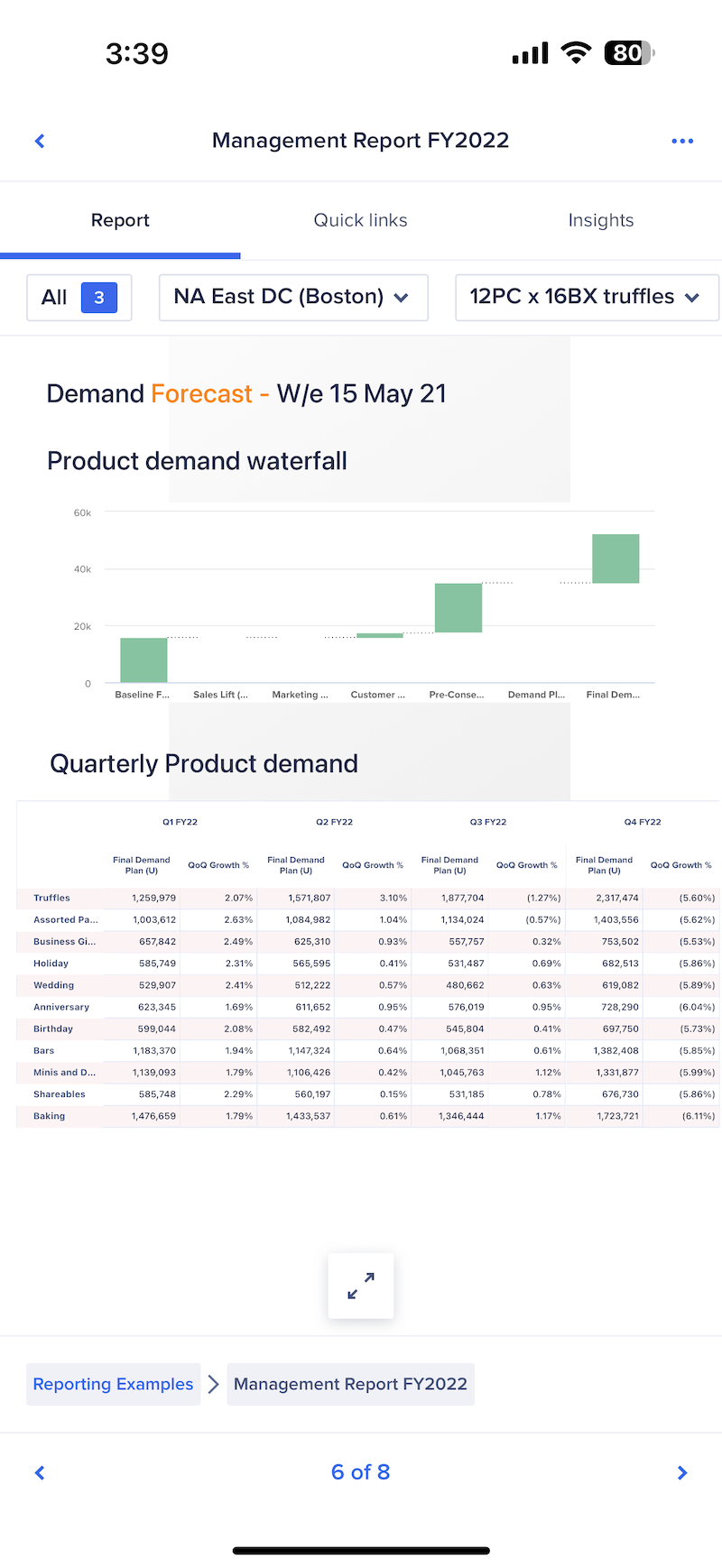
From a report on the mobile app, you can:
- View reports created in Anaplan on desktop.
- View data on cards in the Insights tab.
- Navigate to other pages with Quick links.
- Create tasks if you are a workflow owner.
Adjust display
To expand/collapse a slide:
- To expand a slide to full-screen, tap the Maximize icon at the bottom of the slide.
- To collapse an expanded slide, tap the Minimize icon in the upper-right corner.
To zoom in or out on a slide:
- Use two fingers to pinch in/out of the slide.
- Double-tap on the slide.
To display a slide in landscape mode, rotate the view on your device. Certain devices may have an Auto-rotate screen, Auto rotate, or similar options.
To interact with a grid or chart on a slide:
- Press and hold on it. The grid or chart maximizes to full-screen.
- You can interact with the grid or chart by:
- Scrolling
- Viewing tooltips
- Selecting chart legends
- Tap the Minimize icon to return to the read-only view of the slide.
Navigate between slides
You can scroll between slides in a report. Tap the forward arrow to scroll to the next card, or tap the back arrow to scroll to the previous slide.
To navigate to a specific slide:
- Each slide's position within the total number of slides is displayed at the bottom of the slide. Tap it to see a list of slides.
- Tap a slide title to navigate to that slide.
Quick Links and Insights
In the mobile app, Quick links and Insights display at the top of the screen.
The Quick links tab displays links to other related pages within the same app. Use these links to navigate quickly between pages.
The Insights tab displays cards that contain data from other modules. You can edit grid cell data in grid cards. You can follow a link on a card and navigate to another page.
Any conditional formatting configured on a grid in Anaplan desktop will display in the mobile app.

